How to Create a Poll in Microsoft Teams

Learn how to create a poll in Microsoft Teams chats, channels, and meetings, choose response settings, review results, and close voting.
Microsoft Teams lets owners archive an entire team or an individual channel so its conversations remain available for reference without new posts or replies. An individual chat or channel conversation does not have the same archive control. For a one-on-one chat, use Hide if you simply want it out of your list.
Use these instructions for teams and channels in a work or school account. Archive and restore them through the Teams desktop app or Teams on the web.
| Item | Best option | What it does |
|---|---|---|
| Completed team | Archive team | Freezes activity across the team. |
| Completed channel | Archive channel | Freezes that channel while other active channels remain usable. |
| One-on-one chat | Hide | Removes it from your list without creating a read-only archive. |
| One channel conversation or file | No equivalent individual archive command | Choose the appropriate channel or team scope instead. |
For example, archive a finished launch channel if the department’s other projects are continuing. Archive the whole team only when its shared workspace is no longer active.
You must be a team owner; ordinary membership is insufficient, as Microsoft’s owner and member permissions table confirms. You do not need to open the admin center when you own the team.
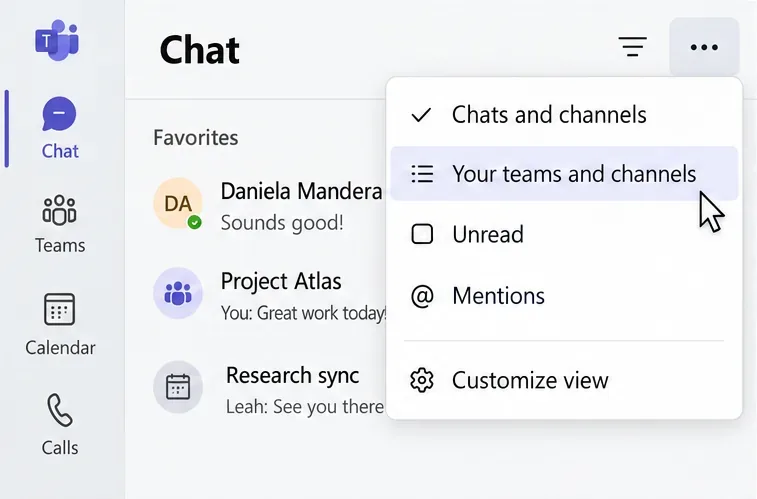
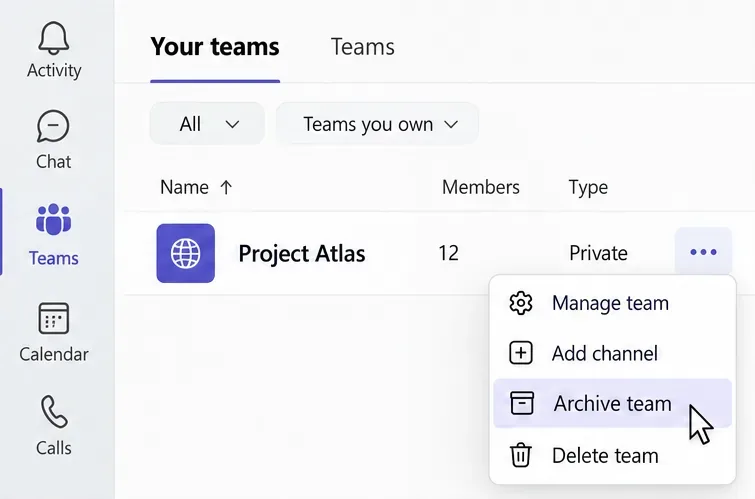
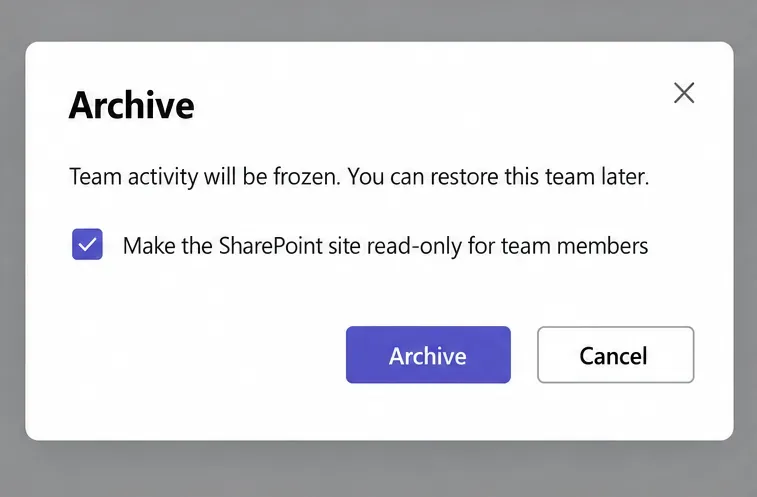
These menu names follow Microsoft’s team archive and restore instructions. If your layout uses a separate Teams view, look for Your teams and channels in that view’s options.
Archiving preserves access to existing material rather than deleting the workspace. Posting, replying, changing channels, and adding apps stop. Owners can still manage members and roles. SharePoint editing restrictions depend on the option selected during archiving; do not assume every linked resource has become permanently locked.
To reactivate the team, return to Your teams and channels. In the filters, open 3 more and choose Archived Teams. Find the team and select More options > Restore team.
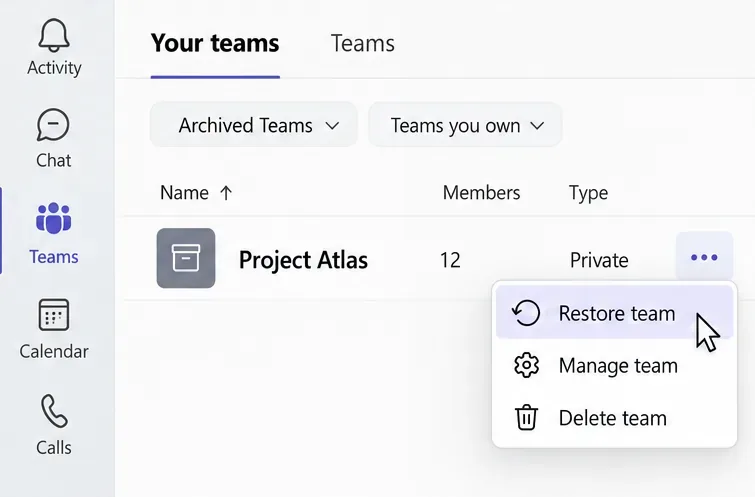
Archiving and deleting have different consequences. If you need the project’s history for reference, review Microsoft’s archive-versus-delete guidance before choosing Delete.
You can archive individual channels. Team owners can do this for standard, private, and shared channels; private and shared channel owners can also archive their channels.
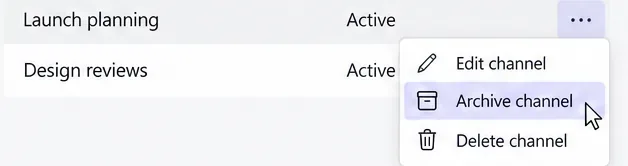
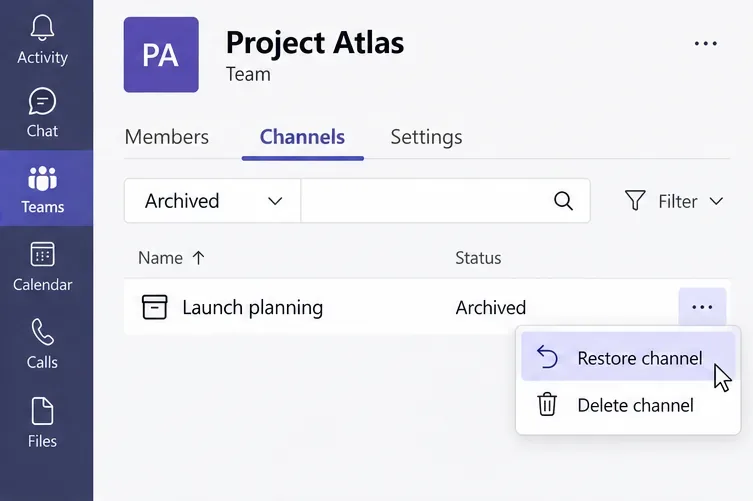
Archived channels remain searchable, but retention and deletion policies still apply. Restoring an archived team does not automatically restore channels that were separately archived. See Microsoft’s channel archive guidance for details.
Teams does not offer the team/channel archive action for an individual conversation. To tidy a one-on-one chat, open its More options > Hide menu. You can find the hidden chat again through search.
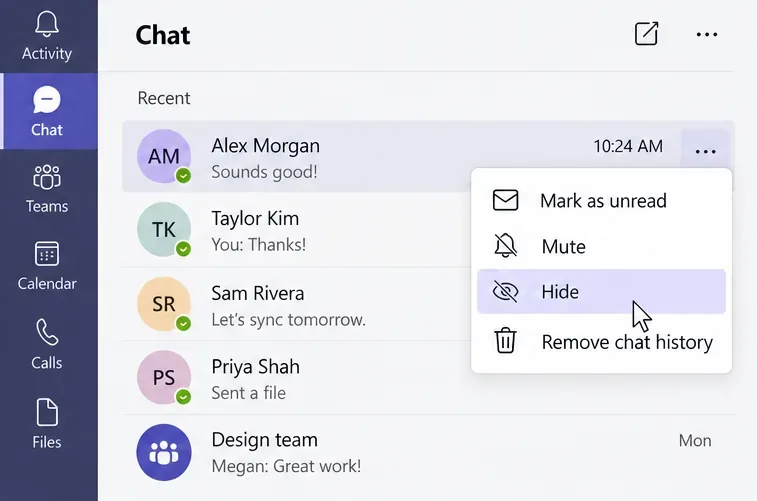
Do not confuse Hide with Remove chat history. Removing history makes it unavailable to you, including in search, while the other person still sees the chat. Group and meeting chats have a separate Leave option, with restrictions for meeting owners. Check Microsoft’s explanation of chat cleanup options before removing anything you want to revisit.
An authorized Teams administrator can open the Teams admin center, go to Teams > Manage teams, select the team using the selector beside its name, and choose Archive. This organization-wide route is described in Microsoft’s admin center documentation.
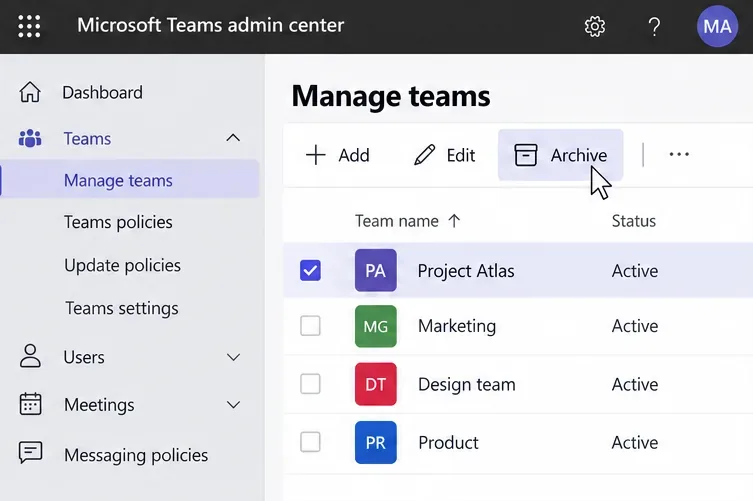
If Archive is missing, first check your role and confirm you are in the correct organization. Use the desktop or web app rather than searching the mobile menus. Also check whether the item is already archived: its relevant command will be Restore. Ask the owner or your IT administrator for help if your account lacks permission.
Learn how to create a poll in Microsoft Teams chats, channels, and meetings, choose response settings, review results, and close voting.
Learn how to mute channel and message notifications in Microsoft Teams, unfollow noisy threads, and control banners while understanding mention alerts.
Learn how to transfer a Microsoft Teams meeting between your computer and phone, use both devices together, and fix missing transfer options or audio issues.
Learn how to snooze a message in Microsoft Teams with Snooze Bot, return to it later, and use saved messages or mute controls when you need another option.
Learn how to create a team in Microsoft Teams, add members, choose channel types, manage permissions, and use the Teams admin center.
Learn how to download a Microsoft Teams recording from Teams, OneDrive, or SharePoint, and fix missing download options, access issues, and expired recordings.
Fix echo during Microsoft Teams meetings by removing duplicate audio connections, selecting the right headset and microphone, and checking audio settings.
Set up Microsoft Teams–Slack integration to launch Teams meetings from Slack. Learn account requirements, app permissions, setup steps, and quick fixes.
Unable to connect to Microsoft Teams meetings? Check the meeting link, account, network, and app, then learn when to contact the organizer or IT.
Microsoft Teams not syncing? Refresh messages across desktop, web, iPhone, and Android, identify account or file issues, and avoid unnecessary cache resets.








