How to Create a Poll in Microsoft Teams

Learn how to create a poll in Microsoft Teams chats, channels, and meetings, choose response settings, review results, and close voting.
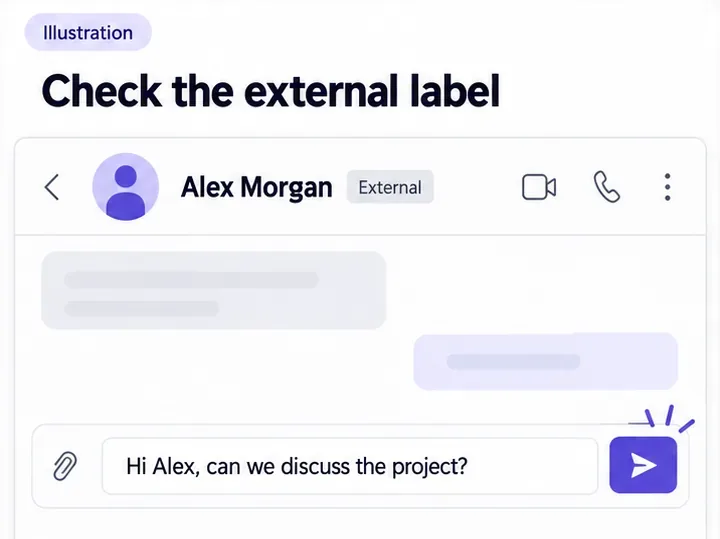
You can chat with external users in Microsoft Teams without adding them as guests by using external access. Start a new chat, enter the person’s full Teams email address, select their external account, and send a message. For work or school contacts in another organization, both organizations must permit the communication.
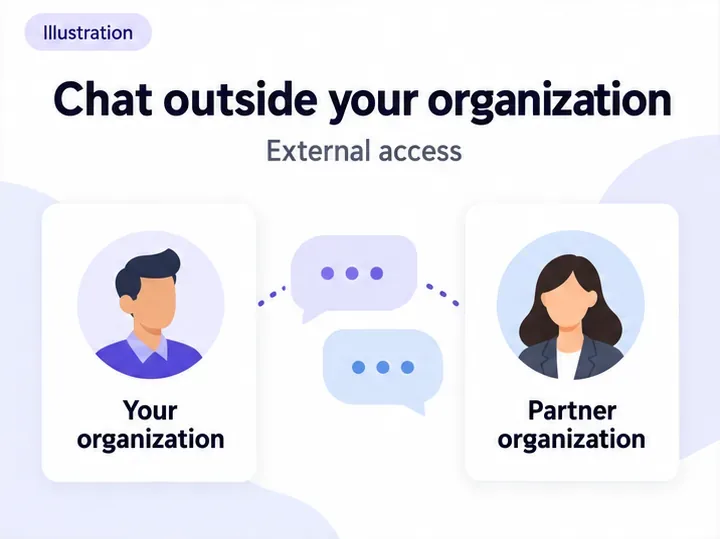
External access, also called federation, lets people communicate while using their existing accounts. Guest access creates a guest identity in your organization’s Microsoft Entra directory. A different email suffix alone does not determine which access method someone has.
| Capability | External access | Guest access |
|---|---|---|
| One-on-one and group chat | Yes, subject to policy | Yes, subject to policy |
| Calls and meeting invitations | Supported for external Teams users | Supported |
| Team and channel resources | No access from external chat alone | Access to resources explicitly granted |
| Guest identity in your directory | Not required for federation | Required |
External users are not limited to one-on-one conversations, and they can be invited to meetings. Guest access is useful when someone needs ongoing access to a team’s channels and resources. See Microsoft’s external access and guest access comparison.
Use Teams with your work or school account. Button names can differ between interface versions.
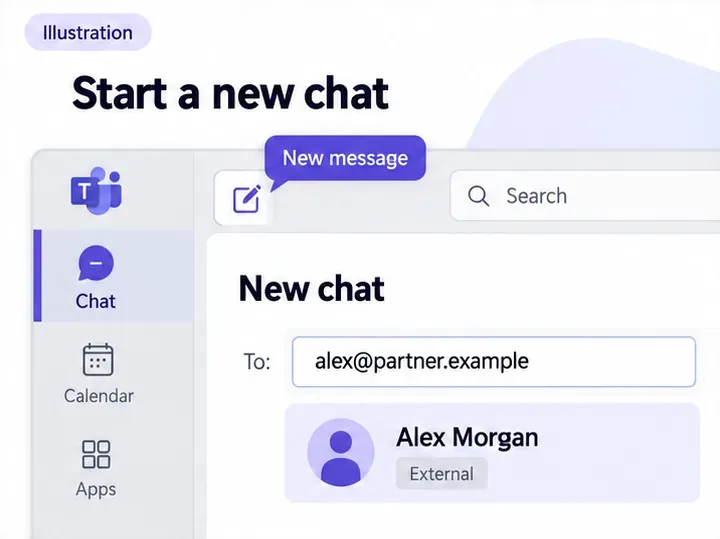
To start a group conversation, enter the other participants’ email addresses in the new chat before sending your message. External participants must use Teams or Teams Free. Microsoft’s external chat instructions explain the supported options.
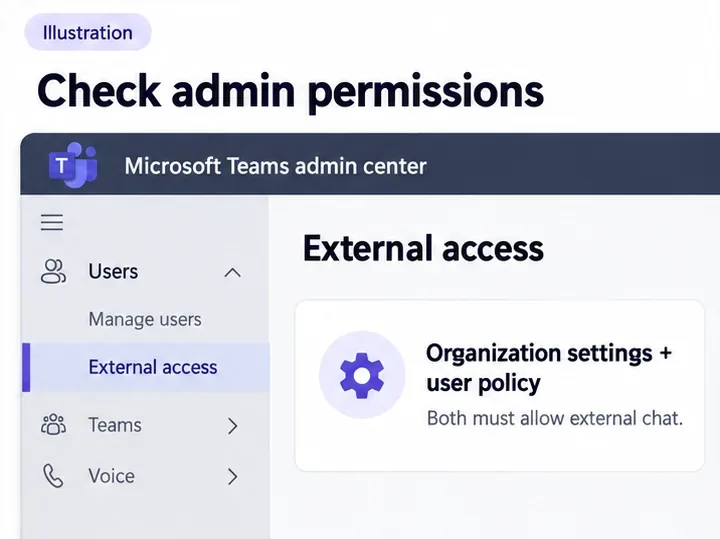
A team owner does not automatically have permission to change organization-wide external access. Ask your Teams administrator to check Users > External access in the Teams admin center. Both the organization settings and the policy assigned to your user must allow external communication.
For a restricted allowlist, the administrator selects Allow only specific external domains, chooses Add external domains, enters the partner’s domain, and selects Done. An allowlist blocks domains not listed. The partner organization must also allow communication with yours.
Possibly, but adding gmail.com to an organization-domain allowlist does not make every Gmail address reachable. For Teams Free accounts, the administrator must review People in my organization can communicate with unmanaged Teams accounts. A separate option controls whether those accounts can initiate contact.
Use Microsoft’s external access settings guide to check the configuration for the recipient’s account type.
Be careful with non-Microsoft 365 contacts, including personal email addresses. Microsoft also documents Chat with people not using Teams (Preview), which can invite someone by email and create or reuse a B2B guest identity, even without adding the person to a team.
That experience is separate from federation. The documentation checked November 1, 2026, labels it Preview, and availability depends on organizational settings. Do not assume that an email-only invitation means no guest account is created. If avoiding guests is essential, ask your administrator to confirm which identity model applies; the External label alone is not sufficient confirmation.
For unresolved search failures, administrators can run Microsoft’s Teams Federation diagnostic or the Teams Federation and Interoperability connectivity test. The external contact troubleshooting guide lists availability limitations and explains the results.
Recipients can review, accept, or block requests; see Microsoft’s guidance on accepting or blocking external requests. Verify unexpected contacts through a known communication channel before sending sensitive information.
Learn how to create a poll in Microsoft Teams chats, channels, and meetings, choose response settings, review results, and close voting.
Learn how to mute channel and message notifications in Microsoft Teams, unfollow noisy threads, and control banners while understanding mention alerts.
Learn how to transfer a Microsoft Teams meeting between your computer and phone, use both devices together, and fix missing transfer options or audio issues.
Learn how to snooze a message in Microsoft Teams with Snooze Bot, return to it later, and use saved messages or mute controls when you need another option.
Learn how to create a team in Microsoft Teams, add members, choose channel types, manage permissions, and use the Teams admin center.
Learn how to download a Microsoft Teams recording from Teams, OneDrive, or SharePoint, and fix missing download options, access issues, and expired recordings.
Fix echo during Microsoft Teams meetings by removing duplicate audio connections, selecting the right headset and microphone, and checking audio settings.
Set up Microsoft Teams–Slack integration to launch Teams meetings from Slack. Learn account requirements, app permissions, setup steps, and quick fixes.
Unable to connect to Microsoft Teams meetings? Check the meeting link, account, network, and app, then learn when to contact the organizer or IT.
Microsoft Teams not syncing? Refresh messages across desktop, web, iPhone, and Android, identify account or file issues, and avoid unnecessary cache resets.








