How to Create a Poll in Microsoft Teams

Learn how to create a poll in Microsoft Teams chats, channels, and meetings, choose response settings, review results, and close voting.
To give control in Microsoft Teams, share your screen or a window, select Give control on the presenter toolbar, and choose a participant. To request control, select Request control while someone is sharing, then wait for approval. The presenter can take control back whenever needed.
Both people should join through the Teams desktop app. Microsoft's policy reference says giving and requesting control is unsupported when either person uses Teams in a browser. Being able to view a screen share does not mean you can control it.
Agree on what the other person will do before handing over your mouse and keyboard. For example, ask a colleague to demonstrate one setting rather than explore your computer freely. Close confidential documents and notifications first.
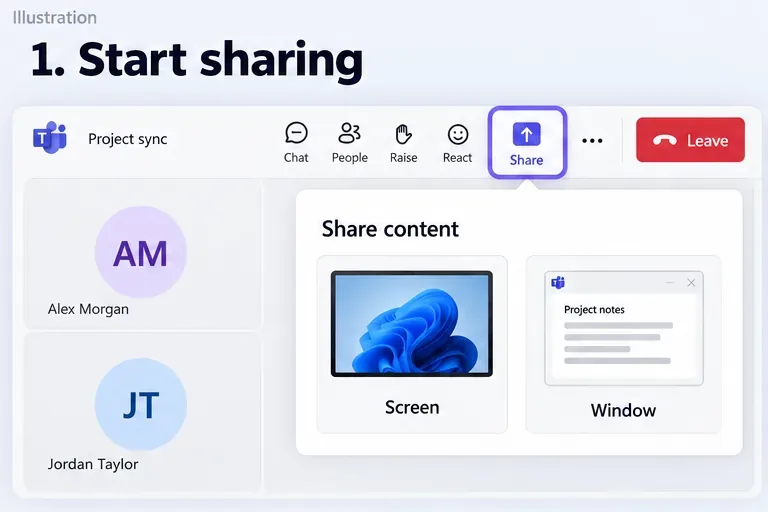
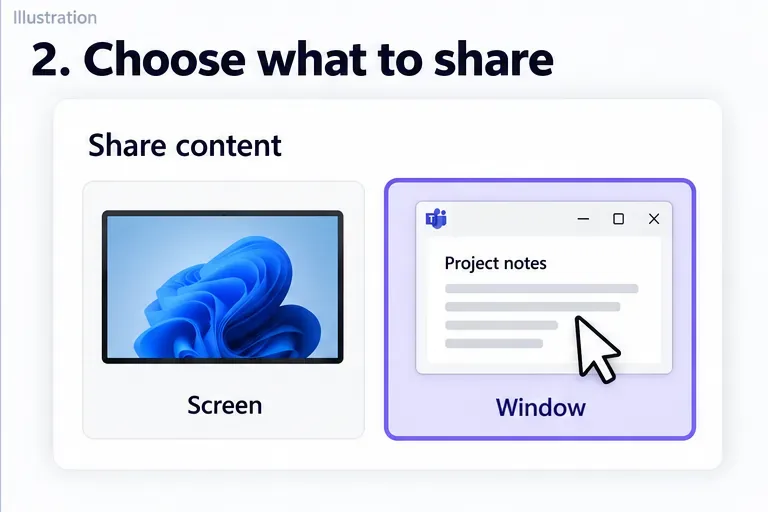
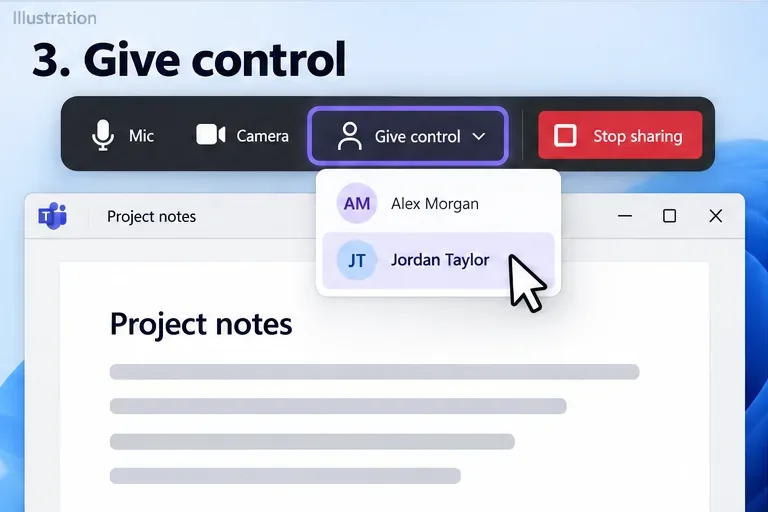
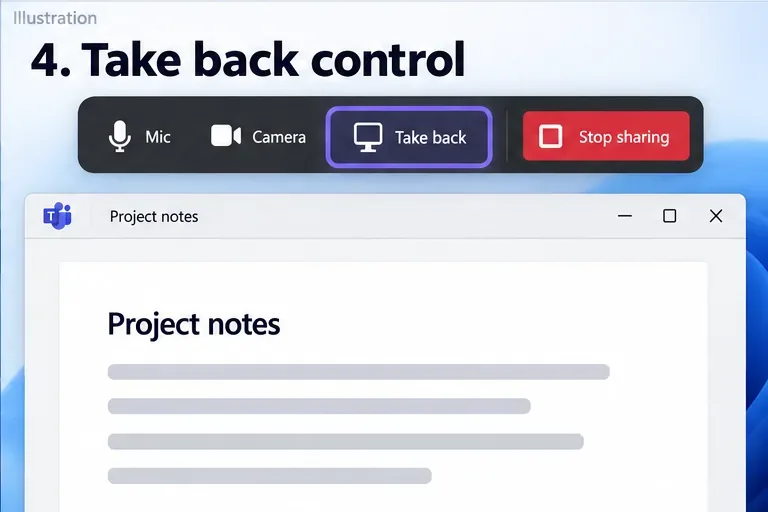
Confirm the intended person's name before selecting it, especially when several participants have similar display names. Explain which document or setting they should work on so everyone understands the handoff.
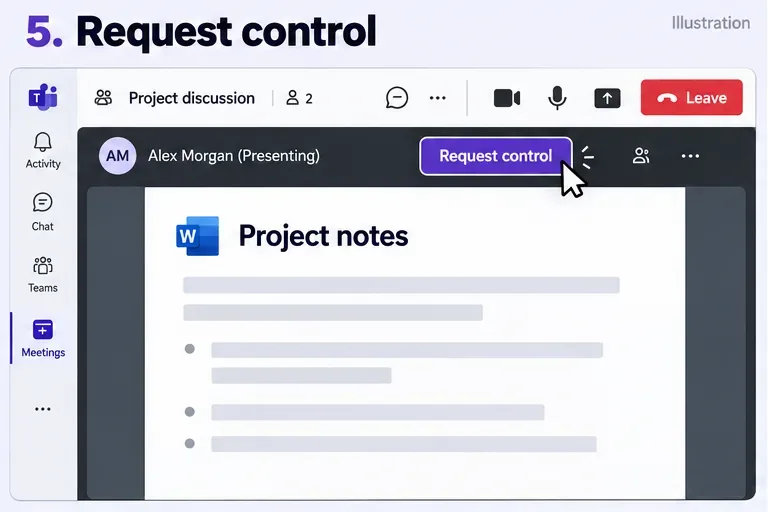
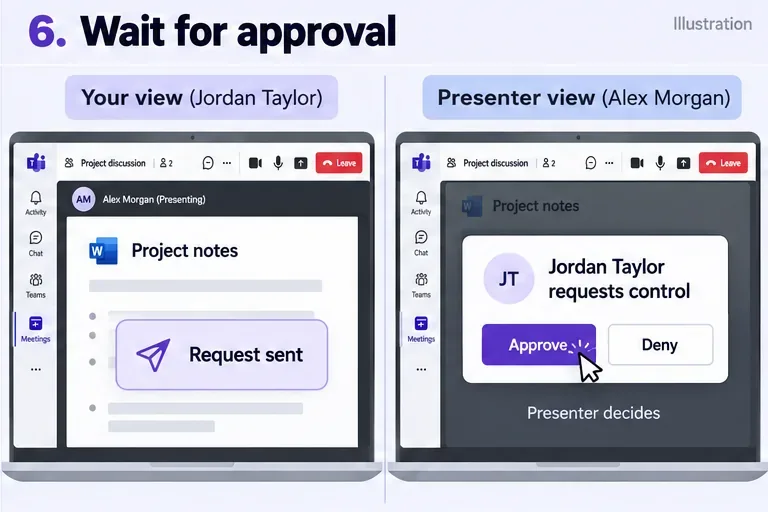
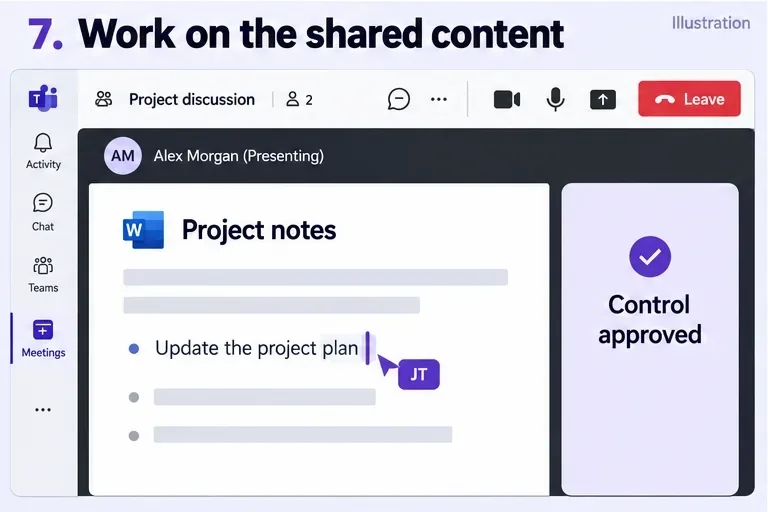
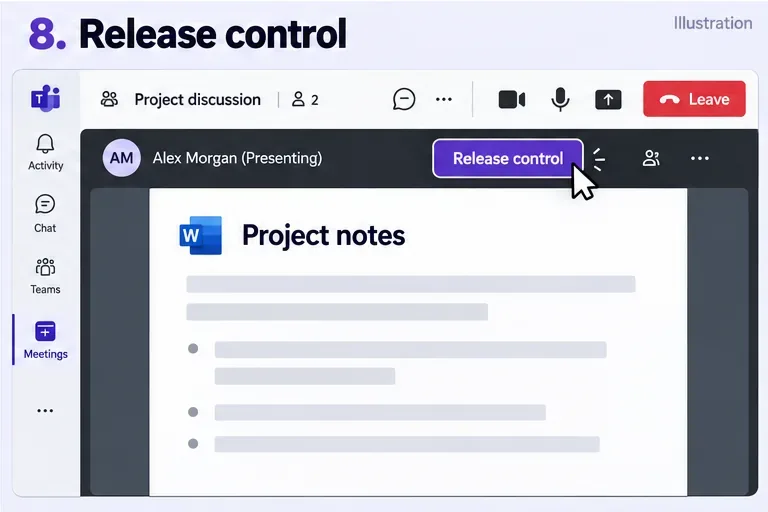
These labels follow Microsoft's meeting presentation instructions. The illustrations show the actions to look for; toolbar placement can vary.
For work or school accounts, an administrator manages availability under Teams admin center > Meetings > Meeting policies > Content sharing. The relevant setting is Participants can give or request control. If the assigned policy disables it, the control option is unavailable.
Guests and people from another organization may also be restricted by External participants can give or request control. Microsoft's reference lists this external setting as off by default. Cross-organization use can require approval in both organizations. Ask IT to check the applicable policies rather than assuming a meeting invitation grants remote control.
The organizer's Who can present option governs presenting privileges; changing it does not replace the separate control policies. See Microsoft's presenting and control policy guidance.
Only give control to someone you trust. Microsoft warns that commands issued by a person with control can affect your system or other applications. Sharing one window is useful for limiting what you present, but do not treat it as a guaranteed security boundary.
Stay at the computer during the handoff. Avoid entering passwords, opening private messages, or approving unexpected changes while someone else has control. Afterward, check the edits together before continuing the meeting.
Using a personal account? Microsoft's Teams personal screen-sharing guide describes the same Give control handoff, but labels the request action Take control. It also states that mobile does not offer giving or taking control.
Learn how to create a poll in Microsoft Teams chats, channels, and meetings, choose response settings, review results, and close voting.
Learn how to mute channel and message notifications in Microsoft Teams, unfollow noisy threads, and control banners while understanding mention alerts.
Learn how to transfer a Microsoft Teams meeting between your computer and phone, use both devices together, and fix missing transfer options or audio issues.
Learn how to snooze a message in Microsoft Teams with Snooze Bot, return to it later, and use saved messages or mute controls when you need another option.
Learn how to create a team in Microsoft Teams, add members, choose channel types, manage permissions, and use the Teams admin center.
Learn how to download a Microsoft Teams recording from Teams, OneDrive, or SharePoint, and fix missing download options, access issues, and expired recordings.
Fix echo during Microsoft Teams meetings by removing duplicate audio connections, selecting the right headset and microphone, and checking audio settings.
Set up Microsoft Teams–Slack integration to launch Teams meetings from Slack. Learn account requirements, app permissions, setup steps, and quick fixes.
Unable to connect to Microsoft Teams meetings? Check the meeting link, account, network, and app, then learn when to contact the organizer or IT.
Microsoft Teams not syncing? Refresh messages across desktop, web, iPhone, and Android, identify account or file issues, and avoid unnecessary cache resets.








