How to Create a Poll in Microsoft Teams

Learn how to create a poll in Microsoft Teams chats, channels, and meetings, choose response settings, review results, and close voting.
To pin items in Microsoft Teams, open the item’s More options (…) menu and choose the appropriate command: Pin for a channel post, Show in > Favorites for a channel in the newer layout, and Pin for me for a meeting video. To highlight a channel file, use Pin to top in its document library.
These instructions focus on Teams for work or school on a computer. Menu labels can vary by layout and rollout. The examples use a project channel called Planning.
| Item | Where it appears | Who sees the change? |
|---|---|---|
| Channel post | Pinned posts in channel details | People with access to the channel |
| Channel | Your Favorites or pinned channel list | You |
| Meeting video | Your meeting view | You |
| File or folder | Highlight area in its library, folder, or view | People with access to that location |
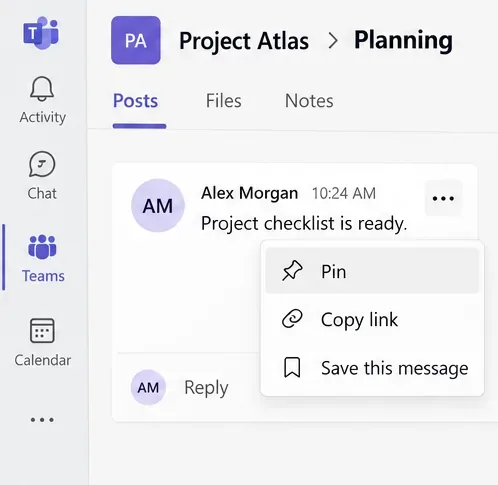
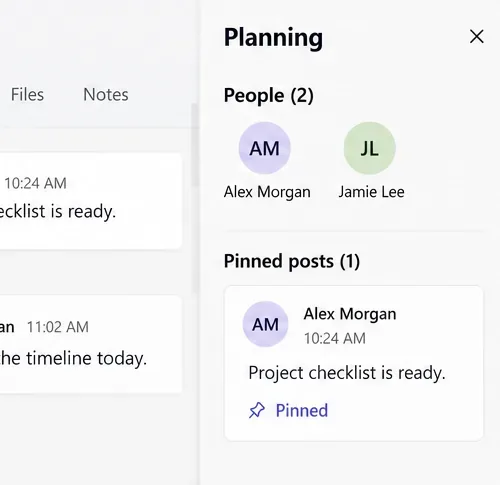
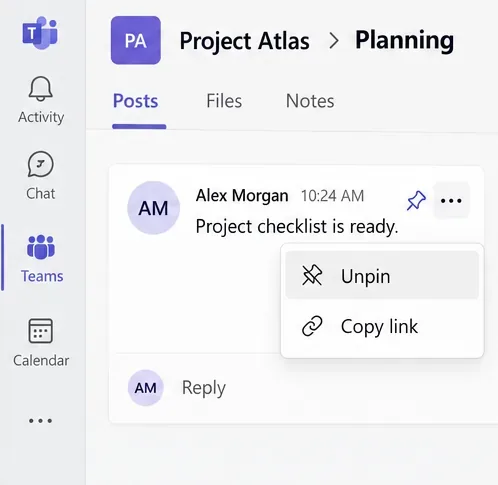
A pinned channel post is available through channel details; do not expect it to stay at the top of the chronological feed. If Pin is missing, ask a team owner or channel moderator to check your permissions. See Microsoft’s channel details guide.
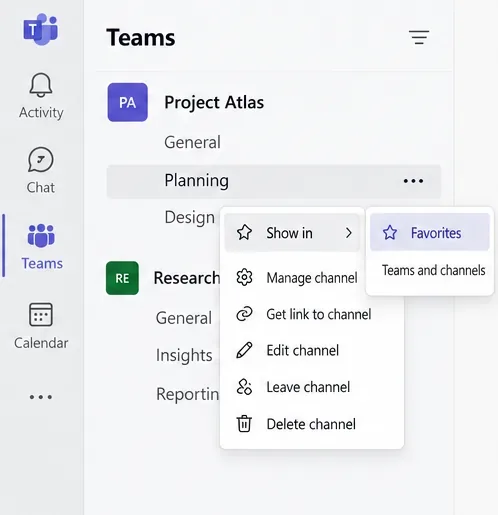
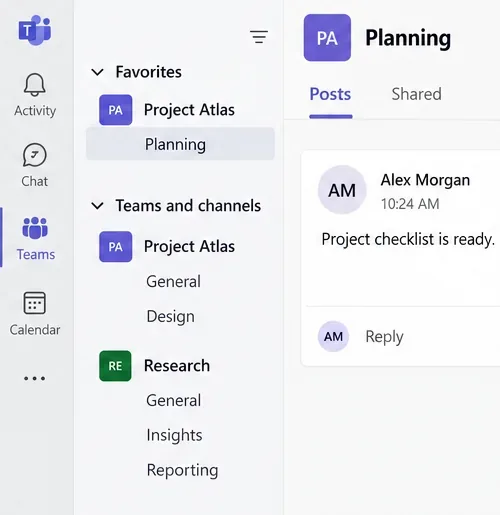
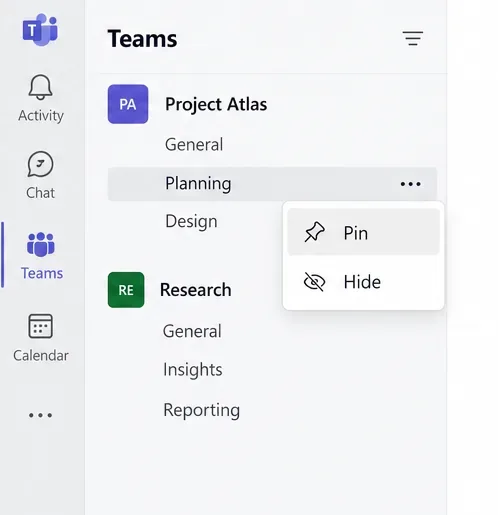
Both routes are documented in Microsoft’s channel organization instructions. Follow the command available in your version.
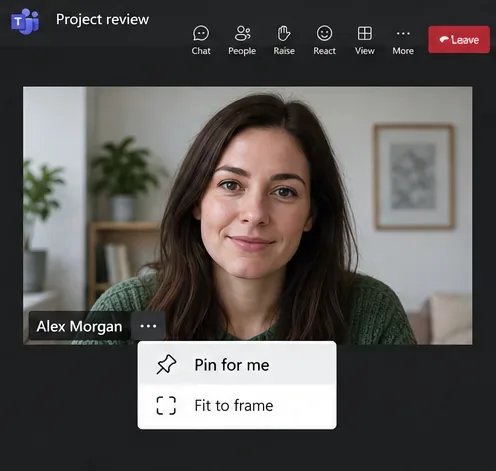
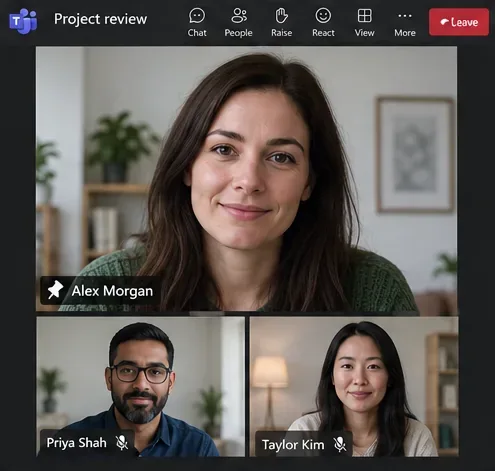
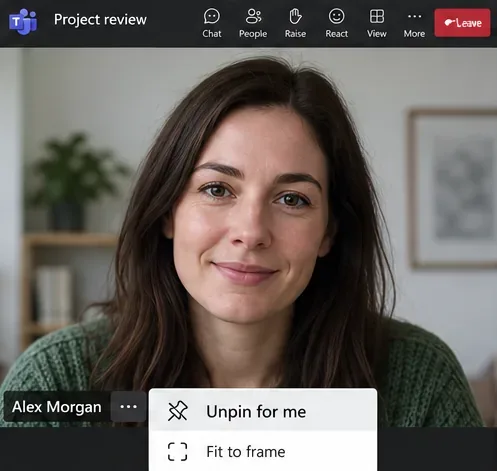
Pinning affects only your view. To highlight someone for the whole meeting, an organizer or presenter uses Spotlight for everyone. Other attendees do not inherit your personal pin. See Microsoft’s video controls guide.
Channel files are stored in SharePoint. The current Teams tab is called Shared; older layouts may say Files.
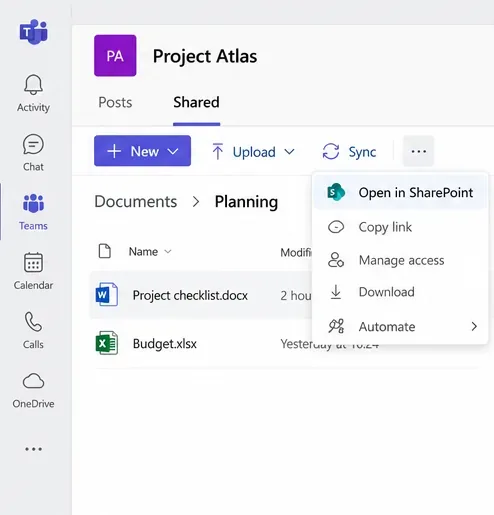
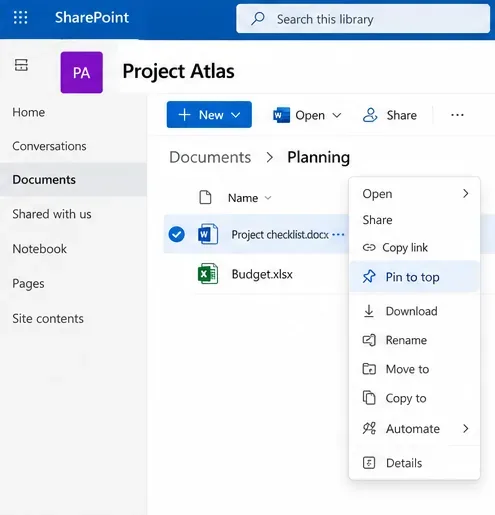
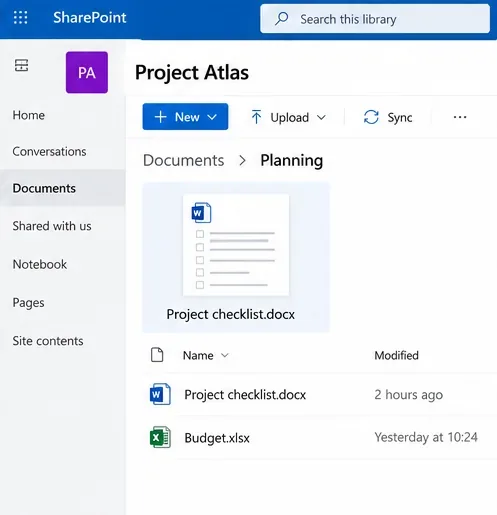
Pins are specific to the folder or library view where you set them. Custom views need their own pins, and this feature is unavailable in SharePoint’s classic experience. See Microsoft’s document library instructions.
For a supported file already shared in the channel, select Add a tab (+), add its app, such as Word, choose the file, and select Save. This creates a separate shortcut. Follow Microsoft’s tab instructions; your organization may restrict adding tabs.
Check that you opened the correct menu: a post, channel name, video tile, and file each have different commands. For posts, check with the channel owner. For files, use the modern SharePoint library. A personal Favorites entry or video pin will not make an item appear for everyone else.
Learn how to create a poll in Microsoft Teams chats, channels, and meetings, choose response settings, review results, and close voting.
Learn how to mute channel and message notifications in Microsoft Teams, unfollow noisy threads, and control banners while understanding mention alerts.
Learn how to transfer a Microsoft Teams meeting between your computer and phone, use both devices together, and fix missing transfer options or audio issues.
Learn how to snooze a message in Microsoft Teams with Snooze Bot, return to it later, and use saved messages or mute controls when you need another option.
Learn how to create a team in Microsoft Teams, add members, choose channel types, manage permissions, and use the Teams admin center.
Learn how to download a Microsoft Teams recording from Teams, OneDrive, or SharePoint, and fix missing download options, access issues, and expired recordings.
Fix echo during Microsoft Teams meetings by removing duplicate audio connections, selecting the right headset and microphone, and checking audio settings.
Set up Microsoft Teams–Slack integration to launch Teams meetings from Slack. Learn account requirements, app permissions, setup steps, and quick fixes.
Unable to connect to Microsoft Teams meetings? Check the meeting link, account, network, and app, then learn when to contact the organizer or IT.
Microsoft Teams not syncing? Refresh messages across desktop, web, iPhone, and Android, identify account or file issues, and avoid unnecessary cache resets.








