Microsoft Teams: How to Share Multiple Screens in a Meeting

To share multiple screens in Microsoft Teams, first decide what viewers need to see. For several apps, arrange their windows on one monitor and share that screen. To move between monitors, stop sharing and select another. To show two of your own monitors together, combine them into one OBS Studio scene.

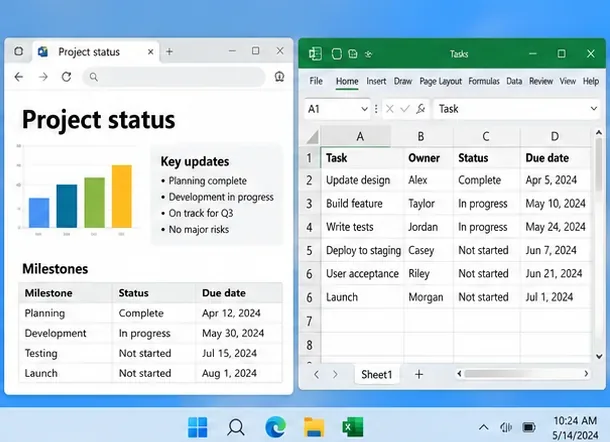
Browser report and task spreadsheet arranged side by side on one Windows desktop
Two app windows on one desktop can appear together in a single screen share.

Can Teams share two screens at the same time?

The standard sharing workflow lets you choose a screen or an individual window. Two people presenting independently is a separate capability: as of November 1, 2026, Microsoft’s multiple-screenshare policy documentation still marks the feature as not fully released. Ask your administrator whether simultaneous presenter sharing is available for your organization; do not assume a policy setting guarantees access.

For two monitors connected to your own computer, use the methods below. Opening extra Teams windows or switching virtual desktops does not combine those displays into one presentation.

Share several app windows from one monitor

This is usually the simplest option. Follow Microsoft’s screen-sharing instructions, using a whole screen when you need to move between apps.

  1. Arrange your apps. Move the relevant windows onto one monitor and tile them side by side. Close private documents and silence notifications before presenting.
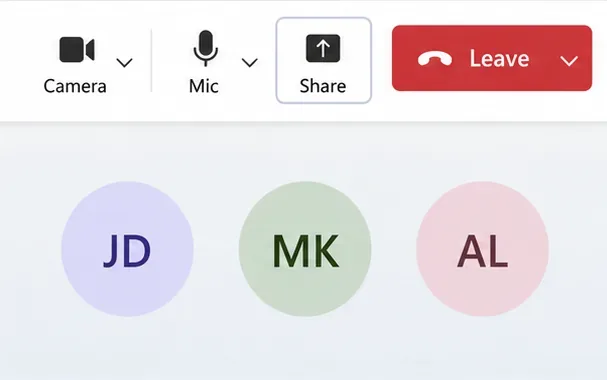
  2. Open the sharing picker. Join or start your meeting, then select Share in the meeting controls.
    Teams meeting toolbar with Camera, Mic, Share, and Leave controls
    Select Share from the meeting controls.
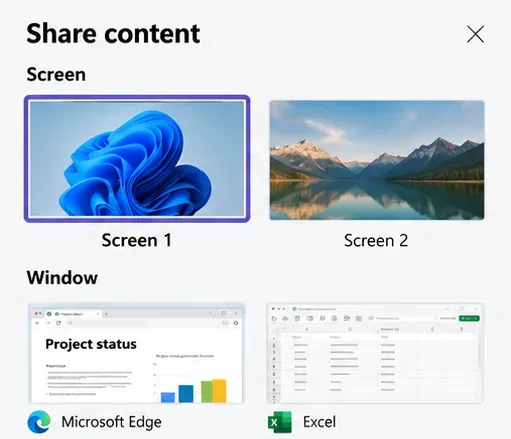
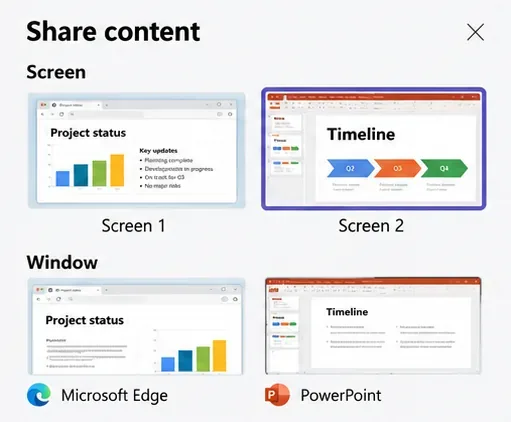
  3. Select the correct screen. Choose its thumbnail under Screen. Selecting an individual item under Window shares that app window instead.
    Teams Share content picker with Screen 1 selected and individual app windows below
    Choose the display containing the apps you want to present.

Keep the meeting and private notes on your other monitor. Anything you move onto the shared display may become visible. Giving someone control lets them interact with shared content; it does not add another screen.

Switch between monitors during the meeting

Use this method when viewers only need one display at a time. It creates a brief interruption while you change sources.

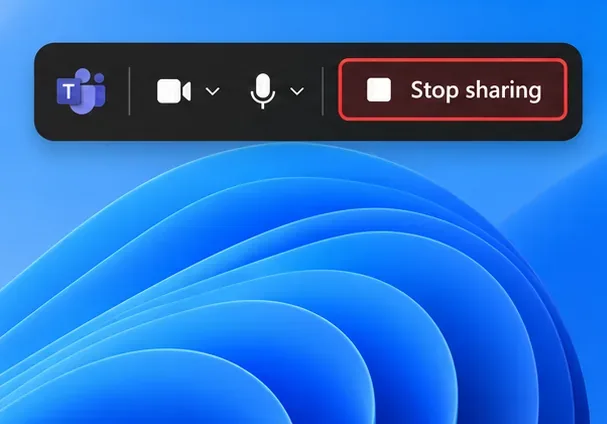
  1. Select Stop sharing in the presenter toolbar.
    Teams presenter toolbar showing the Stop sharing button above a Windows desktop
    End the current share before choosing another display.
  2. Select Share again, then choose the other monitor’s thumbnail. Confirm with a participant that the intended content is visible.
    Teams Share content picker with the Screen 2 presentation thumbnail selected
    Select the second display to change the content participants see.

Show two monitors together with OBS Studio

OBS can combine display captures into one video feed. Install a current version from the official OBS Studio website. The example uses Windows; on macOS 13 or later, use macOS Screen Capture instead of the older Display Capture source, as explained in the OBS capture-source documentation.

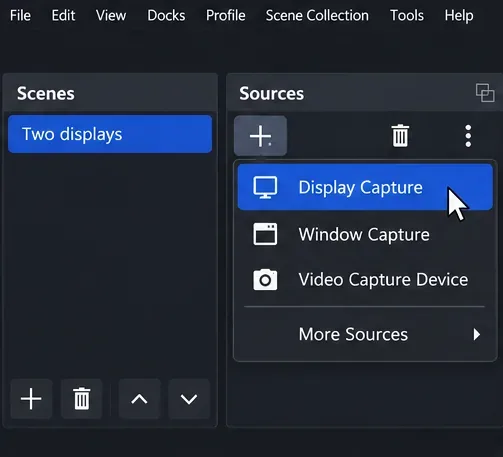
  1. Create a scene. In OBS, add a scene named Two displays. Under Sources, select + and choose Display Capture.
    OBS Sources menu with Display Capture highlighted beside the Two displays scene
    Add display sources to a dedicated scene.
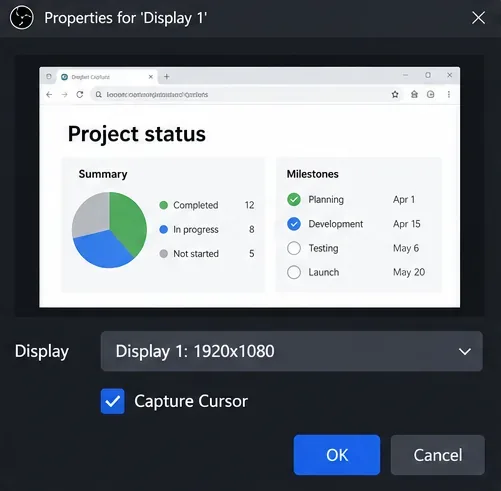
  2. Choose monitor one. Name the source Display 1, select the first monitor in its properties, and select OK.
    OBS Display 1 properties showing a browser report preview and the first display selected
    Verify the first monitor in the source preview.
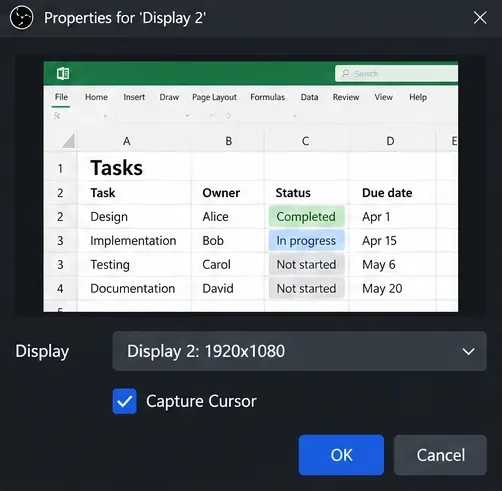
  3. Add monitor two. Create a second display source, name it Display 2, and select the other monitor.
    OBS Display 2 properties showing a spreadsheet preview and the second display selected
    Use a separate source for the second monitor.
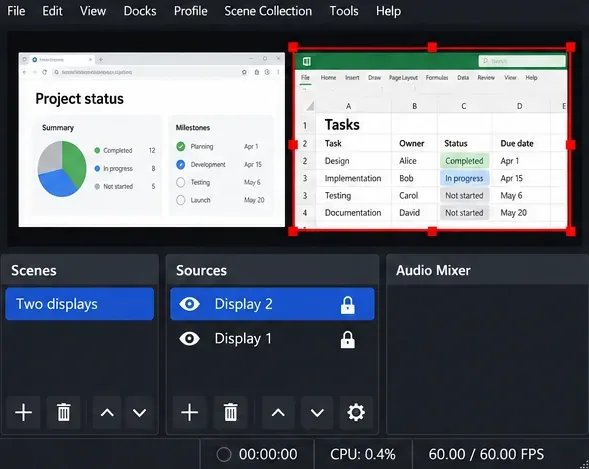
  4. Arrange the captures. Resize and position both sources on the canvas. Keep their aspect ratios intact and leave text unflipped.
    OBS preview with a browser report and spreadsheet side by side and transform handles around the spreadsheet
    Scale both sources to fit the canvas without overlapping.
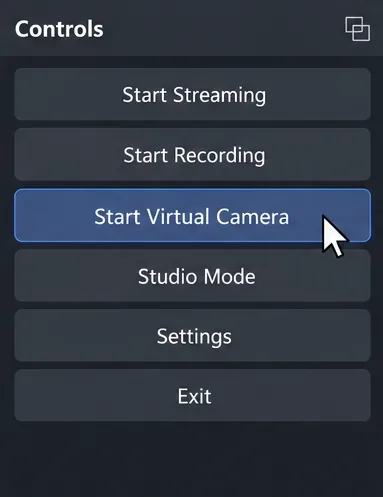
  5. Start the virtual camera. Select Start Virtual Camera in the Controls dock. Current OBS includes this feature; the old OBS-VirtualCam plugin is unnecessary.
    OBS Controls dock with Start Virtual Camera highlighted
    Start the built-in virtual camera to output the scene.
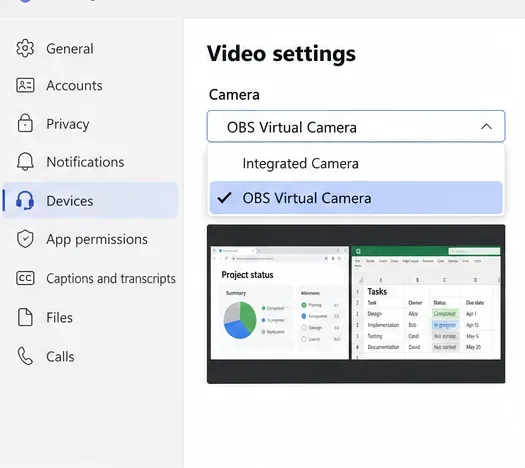
  6. Select it in Teams. Open Settings and more > Settings > Devices. Under Video settings > Camera, select OBS Virtual Camera. Check the preview, then turn on your camera in the meeting. See Teams device settings.
    Teams Video settings with OBS Virtual Camera selected and both display captures in the preview
    Teams receives the combined scene as a camera feed.

The OBS Virtual Camera guide explains the output controls. This method replaces your webcam feed; it is not a native screen share and does not provide remote control of either monitor. It also does not send desktop audio automatically. Keep your microphone selected separately.

For document-heavy presentations, an alternative is to open an OBS Windowed Projector and share that window through Teams. The OBS video-call tutorial describes this approach. Keep the projector out of any captured display to avoid a repeating image. Check readability with another participant before presenting.

Fix missing sharing options or unreadable content

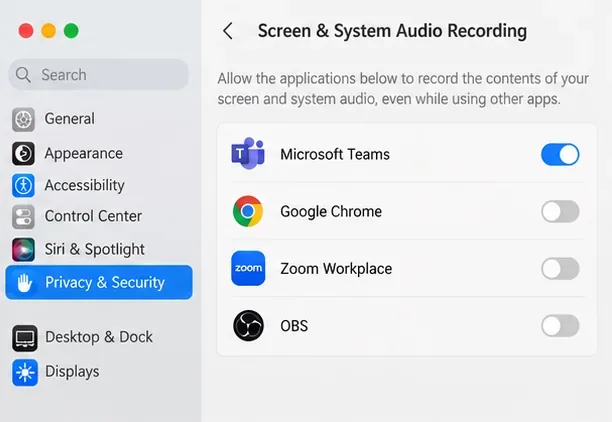
On a Mac, open System Settings > Privacy & Security > Screen & System Audio Recording and enable Microsoft Teams. For browser-based meetings, grant the browser permission too.

macOS Screen and System Audio Recording settings with Microsoft Teams enabled
Allow Teams to capture the screen before presenting on a Mac.
  • Share is unavailable: ask the organizer to check your meeting roles. An administrator may also restrict desktop sharing through content-sharing policies.
  • OBS repeats itself: minimize OBS or exclude its windows from capture, following OBS feedback troubleshooting.
  • Text is too small: enlarge the source apps or show one monitor at a time. Fitting two full displays into one view reduces the space available for each.

Leave a Comment

How to Create a Poll in Microsoft Teams

How to Create a Poll in Microsoft Teams

Learn how to create a poll in Microsoft Teams chats, channels, and meetings, choose response settings, review results, and close voting.

How to Mute Channel and Message Notifications in Microsoft Teams

How to Mute Channel and Message Notifications in Microsoft Teams

Learn how to mute channel and message notifications in Microsoft Teams, unfollow noisy threads, and control banners while understanding mention alerts.

How to Transfer a Microsoft Teams Meeting to Another Device

How to Transfer a Microsoft Teams Meeting to Another Device

Learn how to transfer a Microsoft Teams meeting between your computer and phone, use both devices together, and fix missing transfer options or audio issues.

How to Snooze a Message in Microsoft Teams

How to Snooze a Message in Microsoft Teams

Learn how to snooze a message in Microsoft Teams with Snooze Bot, return to it later, and use saved messages or mute controls when you need another option.

How to Create a Team in Microsoft Teams (and Manage It)

How to Create a Team in Microsoft Teams (and Manage It)

Learn how to create a team in Microsoft Teams, add members, choose channel types, manage permissions, and use the Teams admin center.

How to Download a Microsoft Teams Recording: Three Easy Solutions

How to Download a Microsoft Teams Recording: Three Easy Solutions

Learn how to download a Microsoft Teams recording from Teams, OneDrive, or SharePoint, and fix missing download options, access issues, and expired recordings.

Getting Echo During Microsoft Teams Meetings? Here’s How to Fix It

Getting Echo During Microsoft Teams Meetings? Here’s How to Fix It

Fix echo during Microsoft Teams meetings by removing duplicate audio connections, selecting the right headset and microphone, and checking audio settings.

Microsoft Teams–Slack Integration: How to Set It Up

Microsoft Teams–Slack Integration: How to Set It Up

Set up Microsoft Teams–Slack integration to launch Teams meetings from Slack. Learn account requirements, app permissions, setup steps, and quick fixes.

Unable to Connect to Microsoft Teams Meetings? How to Fix It

Unable to Connect to Microsoft Teams Meetings? How to Fix It

Unable to connect to Microsoft Teams meetings? Check the meeting link, account, network, and app, then learn when to contact the organizer or IT.

Fix Microsoft Teams Not Syncing: Full Guide

Fix Microsoft Teams Not Syncing: Full Guide

Microsoft Teams not syncing? Refresh messages across desktop, web, iPhone, and Android, identify account or file issues, and avoid unnecessary cache resets.