How to Create a Poll in Microsoft Teams

Learn how to create a poll in Microsoft Teams chats, channels, and meetings, choose response settings, review results, and close voting.
To invite external users to a Microsoft Teams meeting, enter their full email addresses in the meeting invitation or send them its join link. They do not have to become members of your team. Joining without an account is possible when your organization permits it; some meetings require sign-in or email verification.
The steps below cover standard work or school meetings. Calendar layouts and button labels can vary between Teams versions.
Select Calendar, then New or a calendar timeslot. Add a meeting title, date, and start and end times.
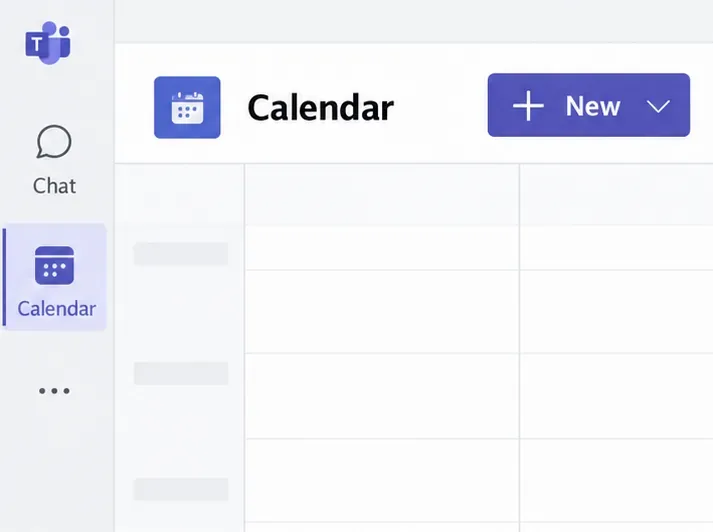
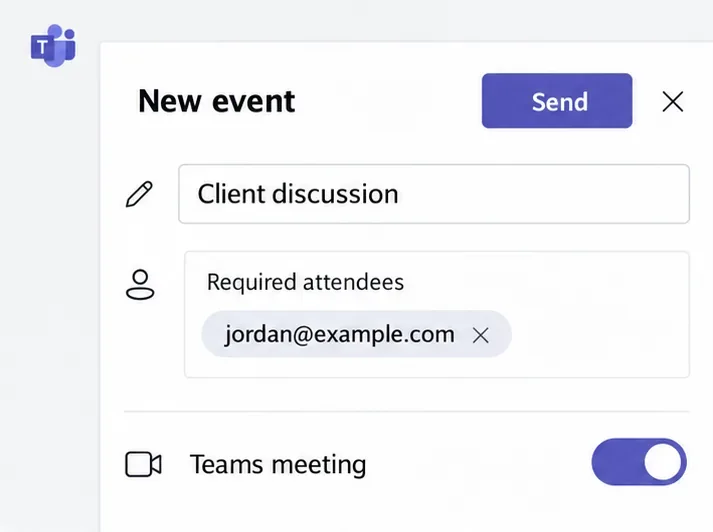
In Required attendees, enter the person's complete email address, such as jordan@example.com. Turn on the Teams meeting toggle, then send the invitation. The recipient receives an email containing the join link.
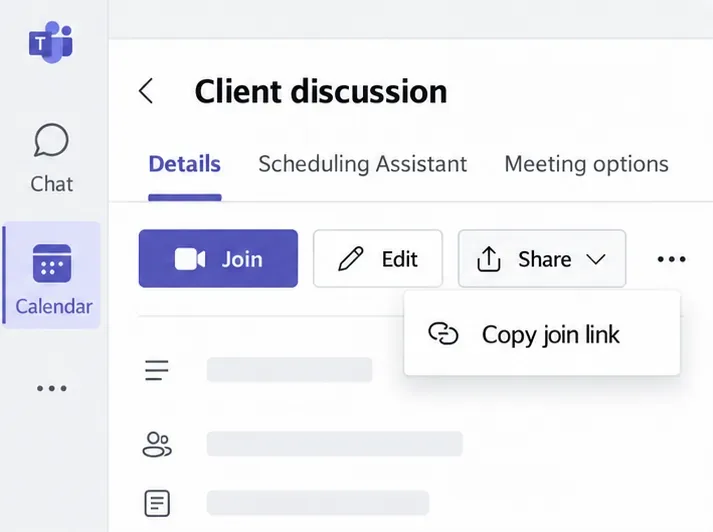
Open the calendar event and select Share > Copy join link. Paste it into your email or chat. Teams supplies a usable link directly; extracting an address from HTML in Notepad is unnecessary.
For an existing meeting, add the attendee and select Send update. See Microsoft's meeting scheduling instructions.
Open the event's Options and find Meeting access. Review Who can bypass the lobby? Choosing People in my org makes external attendees wait for admission. Select Apply after changes.
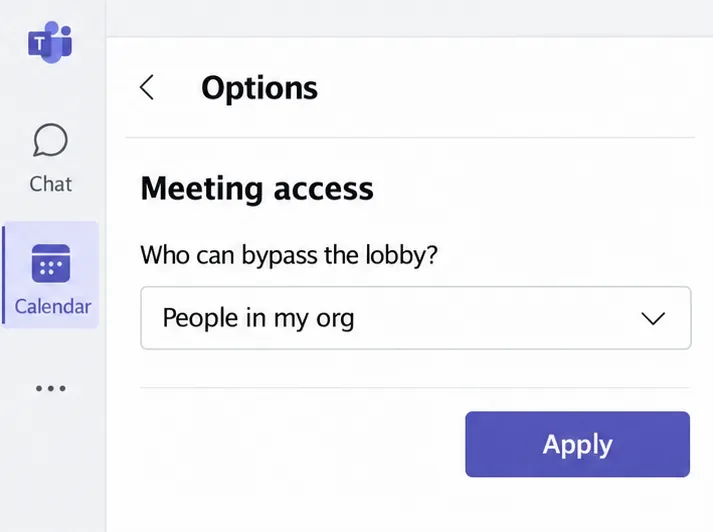
A calendar invitation does not guarantee immediate entry. Lobby choices can be limited by your administrator, and anonymous participants may still wait even when Everyone is selected. Microsoft's lobby guide explains the available settings.
You can share a meeting without returning to the calendar. In the meeting controls, select People, then Share invite, and copy the meeting link. Send it privately to the external attendee.
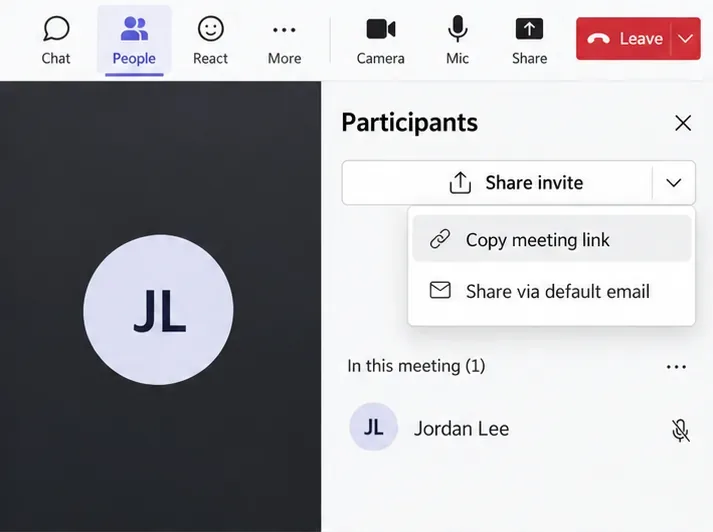
For an instant meeting, Teams also offers Copy meeting link in the initial invitation prompt. Share via default email opens an email invitation in your default mail app. These options are documented in Microsoft's instant meeting guide.
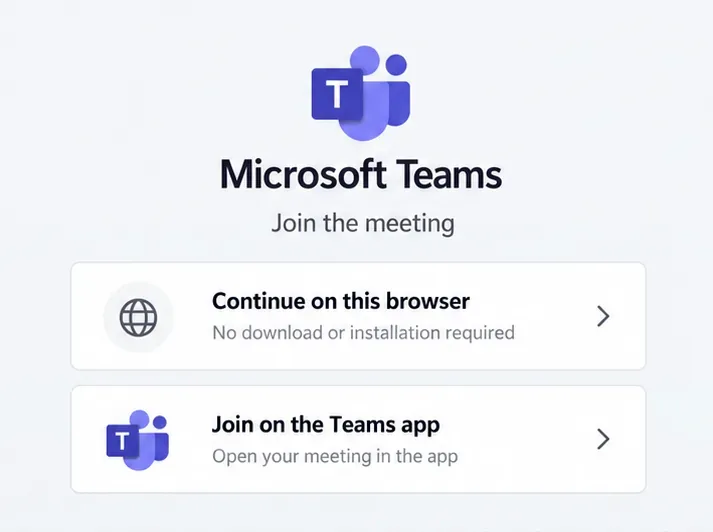
On a computer, select the meeting link and choose Continue on this browser to join without installing Teams. Microsoft documents this option for Edge and Chrome. Alternatively, open the installed Teams app.
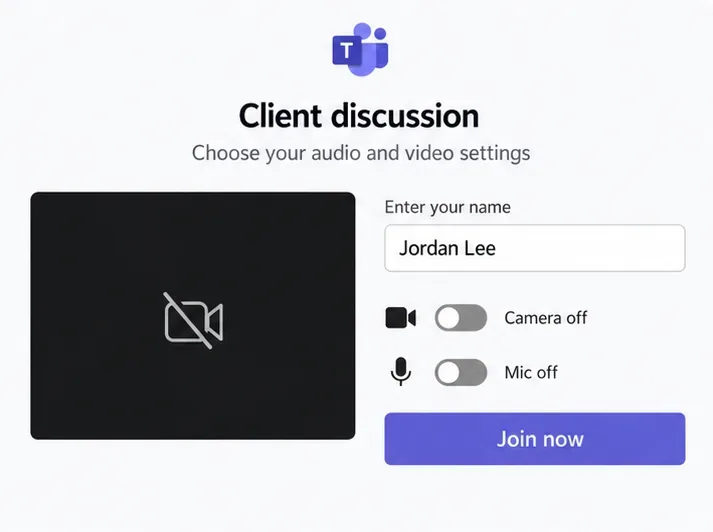
Allow microphone and camera access if needed. When joining without signing in, enter your name if prompted, check your audio and video settings, and select Join now. You can leave the camera off.
If verification is required, follow the email or account prompts. You may need a one-time email code or an authorized account. On a phone or tablet, use the Teams mobile app. See Microsoft's instructions for joining without an account.
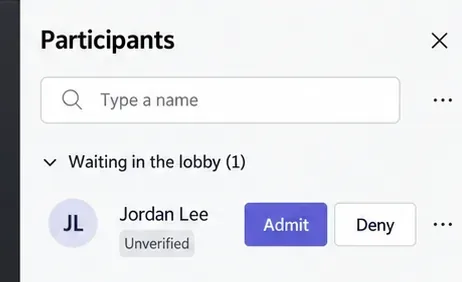
If you enter the lobby, wait for someone authorized to admit you. The organizer can open People, find you under Waiting in the lobby, and select Admit.
Send the organizer the exact error message. Microsoft's external participant troubleshooting guide distinguishes account restrictions from anonymous-join policies.
No. An invitation alone does not add someone to a team or grant access to its channels. Ongoing collaboration through guest access is a separate arrangement.
Meeting chat access also varies by identity and invitation type. Anonymous participants have temporary chat access while attending; some trusted external attendees can retain access afterward. Check Microsoft's meeting chat access rules before promising access after the call.
Learn how to create a poll in Microsoft Teams chats, channels, and meetings, choose response settings, review results, and close voting.
Learn how to mute channel and message notifications in Microsoft Teams, unfollow noisy threads, and control banners while understanding mention alerts.
Learn how to transfer a Microsoft Teams meeting between your computer and phone, use both devices together, and fix missing transfer options or audio issues.
Learn how to snooze a message in Microsoft Teams with Snooze Bot, return to it later, and use saved messages or mute controls when you need another option.
Learn how to create a team in Microsoft Teams, add members, choose channel types, manage permissions, and use the Teams admin center.
Learn how to download a Microsoft Teams recording from Teams, OneDrive, or SharePoint, and fix missing download options, access issues, and expired recordings.
Fix echo during Microsoft Teams meetings by removing duplicate audio connections, selecting the right headset and microphone, and checking audio settings.
Set up Microsoft Teams–Slack integration to launch Teams meetings from Slack. Learn account requirements, app permissions, setup steps, and quick fixes.
Unable to connect to Microsoft Teams meetings? Check the meeting link, account, network, and app, then learn when to contact the organizer or IT.
Microsoft Teams not syncing? Refresh messages across desktop, web, iPhone, and Android, identify account or file issues, and avoid unnecessary cache resets.








