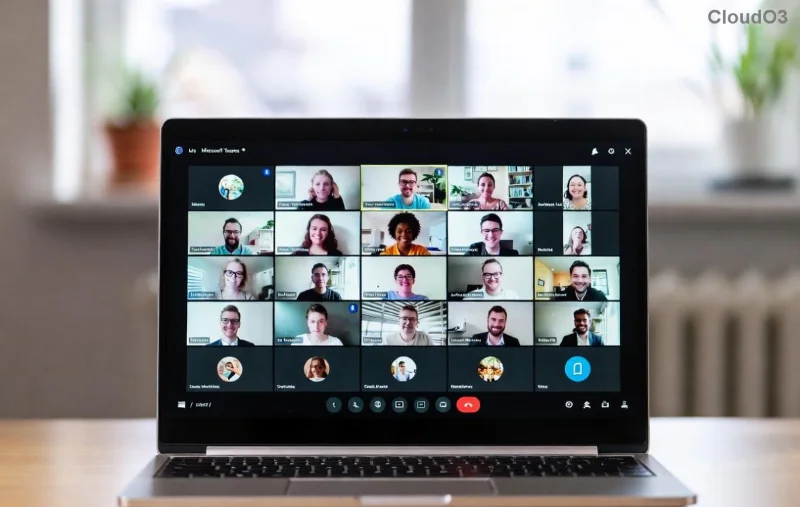
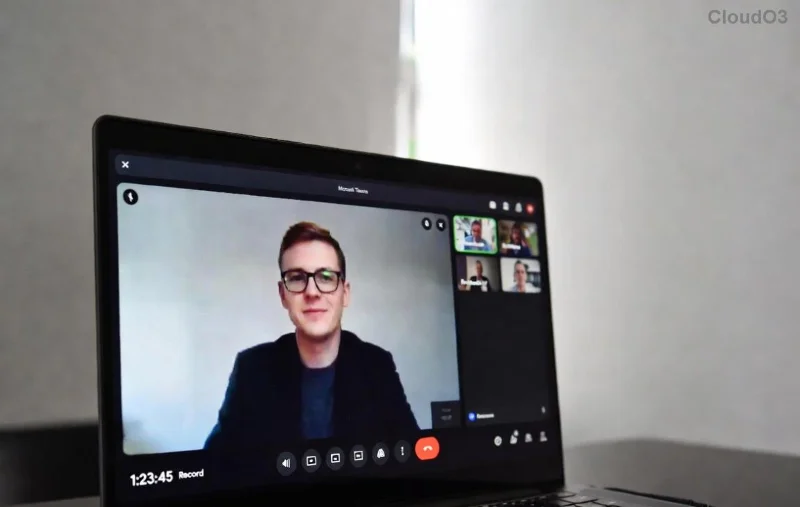
😊 Imagine crushing your workday without Microsoft Teams flipping your status to "Away" every time you step away for coffee. In today's hybrid work world, staying "Available" signals productivity and keeps conversations flowing. But with idle timeouts kicking in after just 5 minutes of inactivity, how do you maintain that green dot all day?
This guide delivers practical, up-to-date strategies to keep Microsoft Teams active seamlessly. We'll cover software tricks, hardware hacks, and pro tips—tested for the latest Teams versions. Ready to stay online 24/7? Let's dive in! ☝️

Why Bother Keeping Microsoft Teams "Available" All Day?
- Boost Responsiveness: Colleagues message you instantly, no delays.
- Enhance Perception: Appear engaged, even during breaks.
- Streamline Workflows: Notifications and calls don't miss a beat.
Microsoft's idle detection is smart—it tracks keyboard/mouse activity. But with remote work booming, overriding it ethically keeps you in the loop. Note: Always check your company's policy to avoid issues! ⭐
Method 1: Use Free Browser Extensions for Effortless Activity
The easiest way to keep Microsoft Teams active in the web or desktop app (via browser mode). Extensions simulate tiny mouse wiggles without disrupting your screen.
- Install Mouse Jiggler Extension: Search Chrome Web Store for "Teams Keep Awake" or "Mouse Jiggler." Top picks like Keep Awake work flawlessly.
- Enable "Stealth Mode" to move cursor invisibly every 30 seconds.
- Pin Microsoft Teams tab and activate—status stays "Available" indefinitely! 😎
Pro Tip: For desktop app users, run Teams in Edge/Chrome for extension compatibility.
Method 2: PowerShell Scripts – Free and Customizable
Want zero-cost control? A simple PowerShell script simulates keystrokes to prevent idle. Perfect for Windows pros.
# Run as Admin in PowerShell (latest Windows 11/10)
Add-Type -AssemblyName System.Windows.Forms
while ($true) {
    [System.Windows.Forms.SendKeys]::SendWait('{NUMLOCK}')
    [System.Windows.Forms.SendKeys]::SendWait('{NUMLOCK}')
    Start-Sleep -Seconds 60
}
- Copy-paste into PowerShell.
- Hit Enter—script runs silently, toggling NumLock every minute. Teams thinks you're typing!
- Stop with Ctrl+C. Customizable intervals for battery savers. 🚀
For Mac/Linux, use caffeine CLI tool: caffeinate -t 3600 for hourly activity bursts. Source: Microsoft Teams Troubleshooting Docs.
![PowerShell script keeping Teams active]()
Method 3: Hardware Solutions – Set It and Forget It
No software? Go physical. These gadgets mimic movement reliably.
| Method |
Pros |
Cons |
Price Range |
| USB Mouse Jiggler |
Plug-and-play, no install |
Visible on desk |
$10-20 |
| Wireless Trackpad |
Portable, battery-powered |
Needs occasional charge |
$15-30 |
| Optomechanical Jiggler |
Stealthy laser movement |
Bulkier |
$25-40 |
⭐ Top Pick: Search Amazon for "USB Mouse Jiggler Teams"—over 10,000 reviews confirm it keeps Microsoft Teams available all day. Pair with a cheap optical mouse for under $15.
Method 4: Advanced Tricks with VMs and Remote Access
For power users:
- Virtual Machine: Run Teams in a VM (VMware/VirtualBox). Keep host idle—VM stays active.
- Remote Desktop: Use Windows RDP or TeamViewer. Activity on remote machine fools Teams.
- Multiple Monitors: Drag a blinking GIF to a second screen—constant motion detected!
![Hardware mouse jiggler for Teams status]()
Best Practices to Maximize Uptime
- 1️⃣ Combine Methods: Script + extension for redundancy.
- 2️⃣ Monitor Battery: Scripts drain minimally; hardware wins for laptops.
- 3️⃣ Test Status: Log out/in to verify "Available" persists.
- ⚠️ Legal Note: Use responsibly—faking activity isn't for dodging work!
Bonus: In latest Teams updates, adjust settings via Settings > General > Register Teams as the chat app for Office to reduce conflicts.
Common Pitfalls and Quick Fixes
- Issue: Status Still Changes? Increase script interval to 4 minutes (Teams timeout).
- Mobile Sync? Desktop activity overrides phone status.
- Mac Users: Enable "Prevent computer from sleeping" in Energy Saver.
These tweaks ensure your Microsoft Teams stays "Available" through meetings, breaks, and beyond. 👏
Wrap-Up: Stay Connected, Stay Productive
With these methods, keeping Microsoft Teams active all day is a breeze. Pick your fave—scripts for free, hardware for hassle-free—and reclaim your workday. Which will you try first? Drop a comment below and share your wins! 🚀
Pro Tip: Bookmark this for quick reference. Your green status awaits! 😊