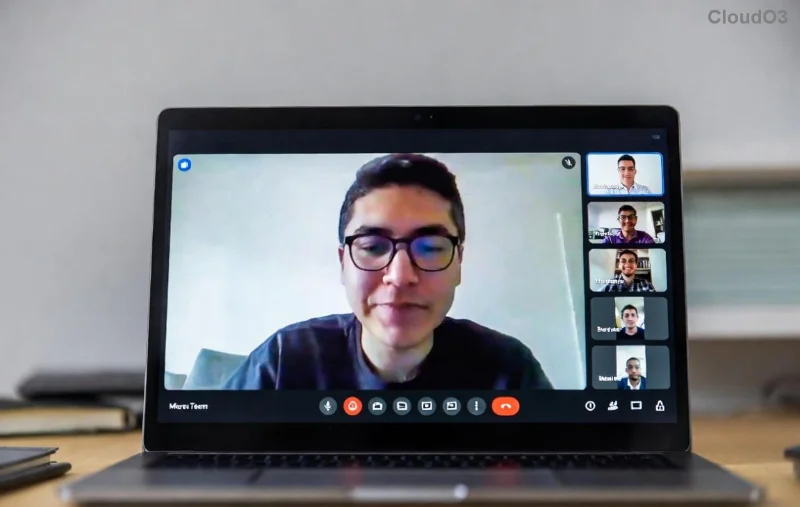
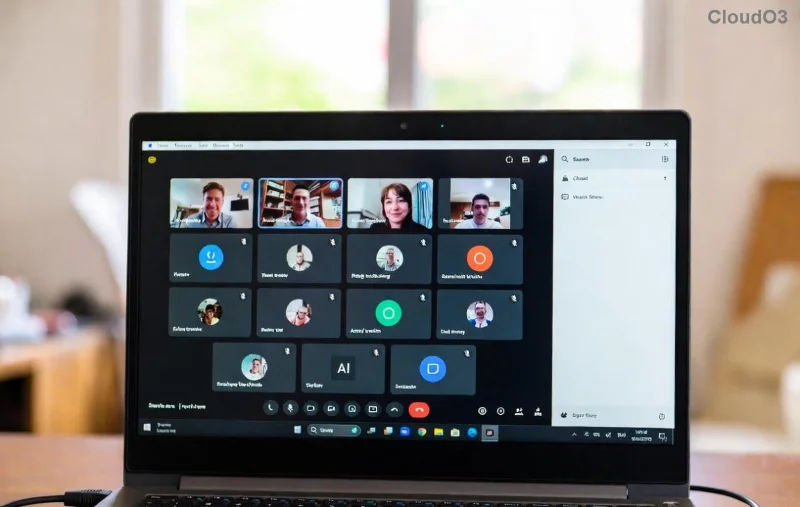
Imagine wrapping up meetings with instant summaries, generating action items effortlessly, and turning chaotic chats into organized insights—all powered by AI right inside Microsoft Teams. That's the magic of Microsoft Teams Copilot, your ultimate sidekick for AI-powered productivity. Whether you're leading a team or juggling solo tasks, this tool transforms how you work. Ready to dive in? Let's get you started! 🚀
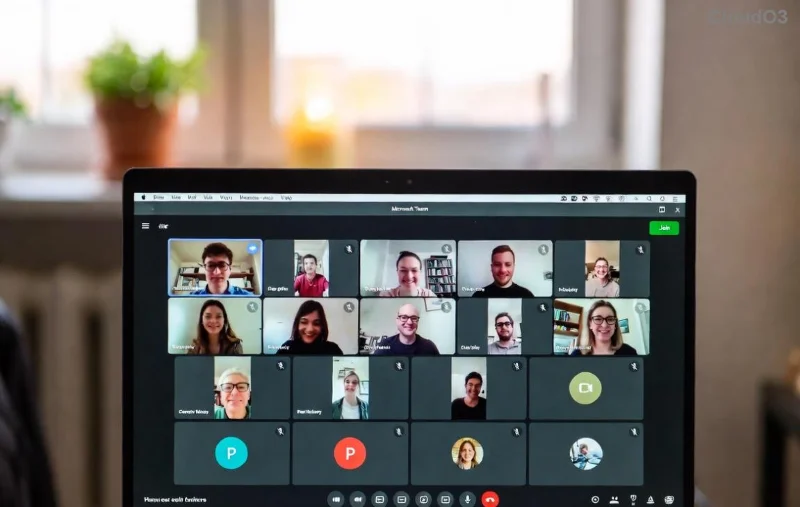
What is Microsoft Teams Copilot?
Microsoft Teams Copilot is an intelligent AI companion integrated into Teams, built on advanced models like GPT-4. It helps you collaborate smarter by automating routine tasks, providing real-time insights, and enhancing communication. Available to Microsoft 365 subscribers with the right license, it's designed for everyone from executives to frontline workers.
Key perks include:
- ⭐ Meeting recaps: Auto-generated summaries, highlights, and action items.
- 👍 Chat assistance: Draft replies, brainstorm ideas, and catch up on threads.
- 1️⃣ Workflow automation: Create agendas, polls, and reports on demand.
Pro tip: Check your eligibility via the Teams app—it's rolling out widely in the latest updates.
Getting Started with Microsoft Teams Copilot
Activating Microsoft Teams Copilot is a breeze. Here's your quick setup:
- Update to the latest Teams version (desktop, web, or mobile).
- Ensure your org admin has enabled Copilot (via Microsoft 365 admin center).
- Spot the Copilot icon ✨ in the top-right of chats, channels, or meetings.
- Click it, type your query, and watch AI work its magic!
If you're new, start with a test chat: "@Copilot summarize this thread" for instant results.
Core Features for AI-Powered Productivity
Microsoft Teams Copilot shines in three powerhouse areas. Let's break them down:
1. Supercharge Meetings
Never miss a beat. Copilot attends meetings (with permission), then delivers:
| Feature |
How It Boosts Productivity |
| Instant Recap |
Key topics, decisions, unanswered questions—in seconds post-meeting. |
| Action Items |
Auto-assign tasks to Loop components or Planner. |
| Highlights |
Speaker insights and sentiment analysis for deeper understanding. |
![Copilot generating meeting action items in Microsoft Teams]()
2. Master Chats and Channels
In team channels or DMs, Copilot is your on-demand assistant:
- Catch up: "What's the latest on project X?"—get tailored updates.
- Generate content: "Draft an email update" or "Create a poll."
- Analyze data: Reference files with "@Copilot review this doc."
3. Advanced Workflow Tools
Go beyond basics:
- Build custom agents for repetitive tasks.
- Integrate with Power Automate for no-code automations.
- Use Copilot Studio for tailored bots (learn more at Microsoft Copilot Studio).
![AI-powered chat assistance and productivity features in Teams Copilot]()
Step-by-Step Guide: How to Use Microsoft Teams Copilot Daily
Put it into action with these proven steps:
Step 1: Prep Your Meeting
Before starting, say: "@Copilot create agenda from these notes." Share it via Loop for collab.
Step 2: During the Call
- Enable Copilot in meeting options.
- Ask real-time: "What did we decide on budget?"
Step 3: Post-Meeting Magic
Tab to "Copilot" in the meeting chat: Request "Full recap" or "Export to Word." 🎉
Step 4: Channel Productivity Hacks
| Prompt Example |
Output |
| "Summarize last week's wins" |
Bullet-point achievements with metrics. |
| "Brainstorm Q4 goals" |
Prioritized list with rationale. |
| "Find risks in this plan" |
Risk matrix table. |
For official prompts, explore Microsoft's Teams Copilot support.
Pro Tips and Best Practices for Maximum Impact
⭐ Be specific: "List top 3 risks from transcript" beats vague asks.
👍 Combine tools: Pair with Outlook for email drafts or Excel for data viz.
1️⃣ Privacy first: Copilot respects your data policies—review retention settings.
2️⃣ Iterate prompts: Refine with "Make it shorter" or "Add examples."
Avoid pitfalls like over-relying on AI (always verify outputs) or ignoring context—feed it files for accuracy.
Level Up Your Team's Output Today
With Microsoft Teams Copilot, AI-powered productivity isn't a dream—it's your new reality. Start small: Pick one feature today, like meeting recaps, and scale up. Your future self (and team) will thank you! What's your first Copilot prompt? Share in the comments and keep the productivity flowing. 👏
For deeper dives, check Microsoft Teams Copilot overview.