Ever felt your Microsoft Teams meetings could use a fresh vibe? Custom backgrounds let you swap out the default blur or office scenes for personal photos, branded images, or fun designs. Whether you're hiding a messy room or showcasing your style, this guide walks you through uploading custom backgrounds to Microsoft Teams effortlessly. Follow these steps on desktop, mobile, or web—no tech headaches guaranteed! 👆
Why Custom Backgrounds in Microsoft Teams Boost Your Calls
Personalized Teams custom backgrounds aren't just eye candy. They:
- 🔒 Hide distractions for a pro look.
- 📈 Build your brand with company logos.
- 😊 Add fun—think holidays or team themes.
- ✅ Work seamlessly in the latest Microsoft Teams updates.
Ready to dive in? Let's start with prerequisites.
Quick Requirements Before Uploading
| Requirement | Details |
|---|---|
| Image Format | JPG, PNG (aspect ratio 16:9 ideal) |
| Resolution | Up to 1920x1080 pixels (smaller files process faster) |
| File Size | Under 4MB per image |
| Teams Version | Latest desktop/mobile app (web has limits) |
Pro tip: Test images on a plain background first to avoid glitches. Now, the main event!
Step-by-Step: Uploading Custom Backgrounds on Desktop (Windows/Mac)
Desktop offers the smoothest experience for Teams background upload. Here's how:
- Open Teams and join or start a meeting (or use "Make a test call" from profile menu).
- Click the three dots More actions (...) next to your video feed.
- Select Show background effects.
- Scroll to the bottom and hit the + Add new button. 👆
- Browse your device, select your image, and click Add.
- Preview, apply, and save—it auto-syncs to your account! 🎉

Your new custom background appears in future meetings. Switch anytime via the effects panel.
Uploading on Mobile (iOS/Android)
Mobile Teams custom backgrounds shine for on-the-go pros. Steps are similar but app-specific:
- Launch the Microsoft Teams app and join a meeting.
- Tap More (⋯) > Turn on video if needed.
- Tap the video icon or Effects (sparkle icon).
- Select Backgrounds, scroll down, and tap +.
- Choose from gallery/camera roll, crop if prompted, and tap Done.
- Apply and you're set! 📱
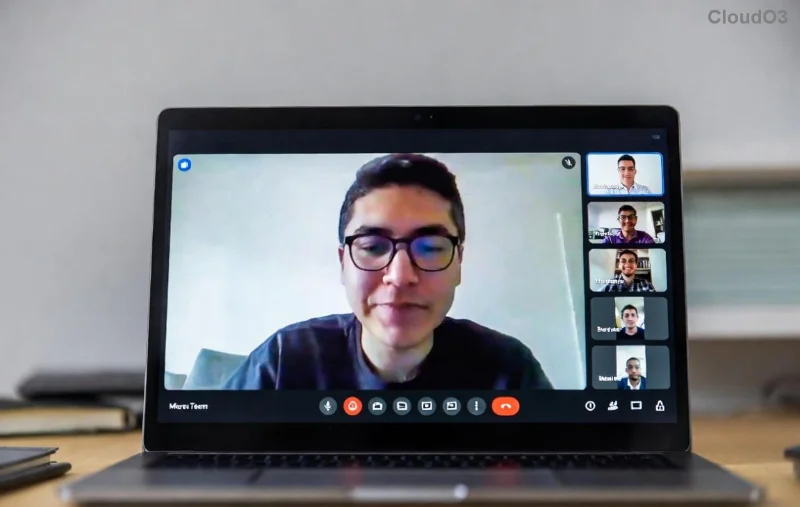
Note: Mobile uploads sync across devices, but admin policies might restrict them.
Web Browser Method (Quick but Limited)
For web users (teams.microsoft.com):
- Join a meeting in your browser (Chrome/Edge best).
- Click More actions > Show background effects.
- + Add new may not appear—pre-upload via desktop first, as web pulls from your account.
- Alternative: Use Teams preview in settings.
Web lags behind apps, so desktop/mobile for full control.
Troubleshooting Custom Backgrounds Issues in Microsoft Teams 🚫
| Issue | Fix |
|---|---|
| Image not uploading | Check format/size; restart Teams |
| Background blurry | Use 1920x1080 resolution |
| No + button | Update app; check admin settings |
| Not syncing | Sign out/in or clear cache |
For official tweaks, check Microsoft's guide.
Pro Tips to Make Your Custom Backgrounds Shine ✨
- ⭐ Design in 16:9 with headroom (your face overlays top 1/3).
- 😊 Keep it simple—busy images distract.
- 📱 Pre-crop for mobile.
- 🔄 Rotate seasonally for engagement.
- ✅ Test in a call before prime time.
Admins: Bulk upload via PowerShell for teams—search "Teams background management" for scripts.
Now your Microsoft Teams calls pop! Experiment with themes and share your faves in comments. Got a tricky step? Drop it below—we're here to help. Stay tuned for more Teams hacks! 👏








