Ultimate Guide: How to Change Microsoft Teams Background Image in Minutes

Ever felt like your plain room needs a virtual upgrade during Microsoft Teams meetings? 😊 Changing your Microsoft Teams background image is a game-changer—it hides clutter, adds fun, and makes you look polished. Whether you're presenting or chatting casually, a custom backdrop boosts professionalism and vibe. Let's dive into simple, foolproof steps for desktop, web, mobile, and custom images. Ready to transform your calls? 👉

Why Customize Your Microsoft Teams Background Image?

  • Privacy boost: Blur or replace messy spaces.
  • Brand it: Use company logos for pro meetings.
  • Fun factor: Beach, office, or galaxy—pick your mood!
  • Accessibility: Built-in options suit all devices.

Microsoft keeps updating features for seamless video effects. Follow these steps, and you'll master it in under 2 minutes. Let's start!

How to Change Microsoft Teams Background Image on Desktop App

The desktop version offers the smoothest experience with previews. Here's how:

  1. 1️⃣ Join or start a meeting.
  2. 2️⃣ Click your video camera icon or More actions (three dots) next to it.
  3. 3️⃣ Select Apply background effects or Video effects.
  4. 4️⃣ Scroll through presets: blur, office scenes, nature, or holidays.
  5. 5️⃣ Preview on the right—hover to test. Click Apply or Preview > Apply and turn on video.
  6. 6️⃣ Done! Changes save for future meetings.
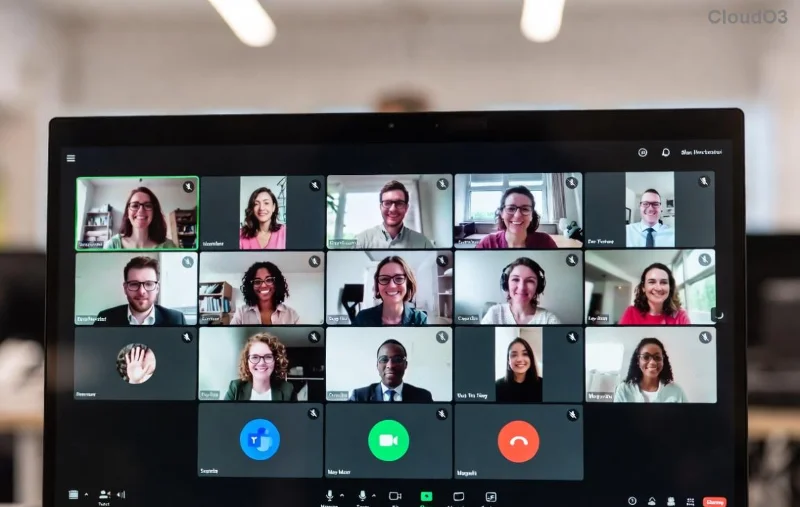
Microsoft Teams desktop background effects menu

Pro tip: ⭐ Enable Blur for quick privacy without images.

Change Microsoft Teams Background Image on Web Browser

No app? Web works great on Chrome or Edge:

  1. 1️⃣ Log into teams.microsoft.com and join a meeting.
  2. 2️⃣ Click More actions (…) above your video preview.
  3. 3️⃣ Choose Show background effects.
  4. 4️⃣ Pick from gallery or upload custom (more below).
  5. 5️⃣ Select and hit Apply. Preview ensures it fits.

Same presets as desktop, but test your browser for best performance.

Mobile Mastery: Update Microsoft Teams Background Image on Phone

On iOS or Android? Quick taps do it:

StepAction
1️⃣Open Teams app and join meeting.
2️⃣Tap More (…) on top-right.
3️⃣Select Video effects or swipe up on controls.
4️⃣Browse effects, tap to preview.
5️⃣Tap Done—it applies instantly.
Teams mobile background selection screen

Mobile limits custom uploads slightly, but presets shine. 👏

Upload Your Own Custom Teams Background Image

Want a personal touch? Upload photos or logos (JPG/PNG, under 1920x1080 recommended):

  1. 1️⃣ In effects menu (any platform), scroll to bottom.
  2. 2️⃣ Click Add new or Upload.
  3. 3️⃣ Choose image from files—Teams optimizes it.
  4. 4️⃣ Preview and apply. Saves to your account!
Uploading custom background to Microsoft Teams

Best practices: Use high-res images without faces (policy). Avoid watermarks for clean looks. Custom backgrounds sync across devices. For admins, check Microsoft support for org policies.

Top Tips & Troubleshooting for Perfect Teams Backgrounds

  • Performance lag? Lower resolution or stick to blur. ❌
  • No effects option? Update Teams app—restart helps.
  • Image not showing? Check internet; re-upload.
  • Pre-meeting setup: Go to Settings > Devices > Make a test call.
  • Favorites: Pin top picks for speed.

Troubleshoot table for quick fixes:

IssueSolution
Effects grayed outTurn on camera first.
Custom not savingClear cache or relogin.
Blurry previewUse 16:9 aspect ratio images.

Level Up Your Meetings Today!

Now you know exactly how to change your Microsoft Teams background image across all platforms. Experiment with customs for that wow factor—your colleagues will notice! 😎 Got a favorite backdrop? Share in comments below. Stay tuned for more Teams hacks to make remote work epic. Happy calling! 🎉


Leave a Comment

🚀 Fix Microsoft Teams Action Required Login Error in Minutes: Proven Steps

🚀 Fix Microsoft Teams Action Required Login Error in Minutes: Proven Steps

Stuck with Microsoft Teams "Action Required" login error? Discover step-by-step troubleshooting fixes for instant access. Clear cache, reset credentials, and more – updated for the latest versions. Get back to collaborating seamlessly!

🚀 Fix Microsoft Teams Network Error Offline: 10 Proven Steps to Get Back Online Fast!

🚀 Fix Microsoft Teams Network Error Offline: 10 Proven Steps to Get Back Online Fast!

Struggling with Microsoft Teams "Network Error" Offline? Discover proven, step-by-step fixes to resolve it quickly. From cache clearing to network resets, get Teams working smoothly again—no tech skills needed!

Fix Microsoft Teams Password Error Recovery: Proven Steps to Regain Access Instantly

Fix Microsoft Teams Password Error Recovery: Proven Steps to Regain Access Instantly

Struggling with Microsoft Teams Password Error Recovery? Discover step-by-step fixes for password errors, cache clears, and account recovery to get back to seamless collaboration. Updated with the latest solutions.

Stuck on Microsoft Teams Welcome Screen? 7 Proven Fixes to Get Back Online Instantly!

Stuck on Microsoft Teams Welcome Screen? 7 Proven Fixes to Get Back Online Instantly!

Frustrated by the Microsoft Teams "Welcome" screen stuck error? Follow our step-by-step guide with proven solutions to fix it fast—no tech skills needed. Get back to seamless collaboration today!

🔧 Instant Fix: How to Fix Microsoft Teams Win 7 Error Compatibility Issues Fast!

🔧 Instant Fix: How to Fix Microsoft Teams Win 7 Error Compatibility Issues Fast!

Tired of the Microsoft Teams 'Win 7 Error'? Discover proven, step-by-step fixes for compatibility problems. Get Teams running smoothly on older Windows setups without hassle. Updated with the latest solutions!

🚨 Fix Microsoft Teams Layout Error Sidebar FAST – Proven Troubleshooting Guide 2026

🚨 Fix Microsoft Teams Layout Error Sidebar FAST – Proven Troubleshooting Guide 2026

Master Troubleshooting Microsoft Teams "Layout Error" Sidebar with this ultimate guide. Step-by-step fixes for layout glitches, sidebar crashes, and more – get back to seamless collaboration in minutes!

🚨 Fix Microsoft Teams Wiki Error Formatting FAST: Ultimate 2026 Troubleshooting Guide

🚨 Fix Microsoft Teams Wiki Error Formatting FAST: Ultimate 2026 Troubleshooting Guide

Tired of Microsoft Teams Wiki Error ruining your formatting? Get instant fixes for bold, italics, lists & more. Step-by-step guide with proven solutions for seamless Teams Wiki editing.

🚀 Fix Microsoft Teams Installing Error on Windows Server: Proven 2026 Guide

🚀 Fix Microsoft Teams Installing Error on Windows Server: Proven 2026 Guide

Struggling with Microsoft Teams installing error on Windows Server? Discover proven step-by-step fixes, from prerequisites to advanced troubleshooting, to resolve it instantly and boost your productivity. Updated with the latest solutions.

Why Cant I See Breakout Rooms in Teams? 7 Proven Fixes to Unlock Them Now!

Why Cant I See Breakout Rooms in Teams? 7 Proven Fixes to Unlock Them Now!

Can't spot Breakout Rooms in your Microsoft Teams meeting? Uncover the top reasons why Breakout Rooms in Microsoft Teams are missing and follow our step-by-step fixes to enable them effortlessly for seamless collaboration.

🚀 Unlock Vacation Mode: How to Set Out of Office Status in Microsoft Teams Instantly

🚀 Unlock Vacation Mode: How to Set Out of Office Status in Microsoft Teams Instantly

Discover the easiest ways to set Out of Office status in Microsoft Teams. Sync from Outlook, custom messages, mobile tips & troubleshooting for seamless away time. Stay productive even when offline!






