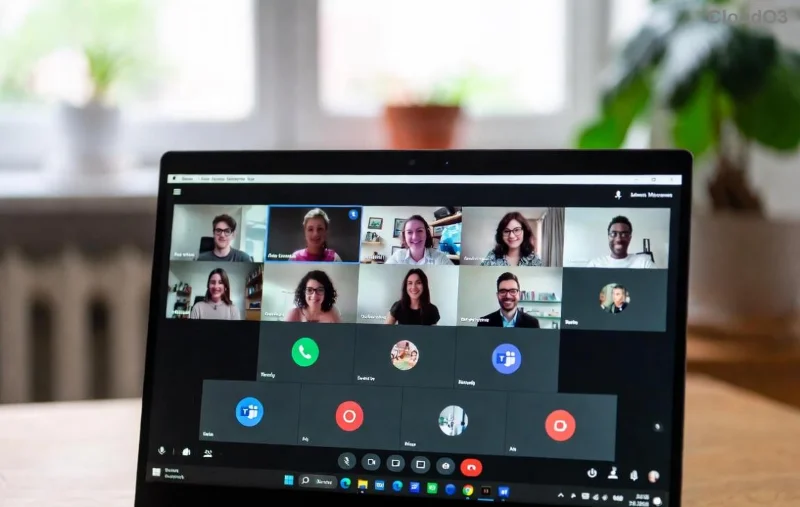
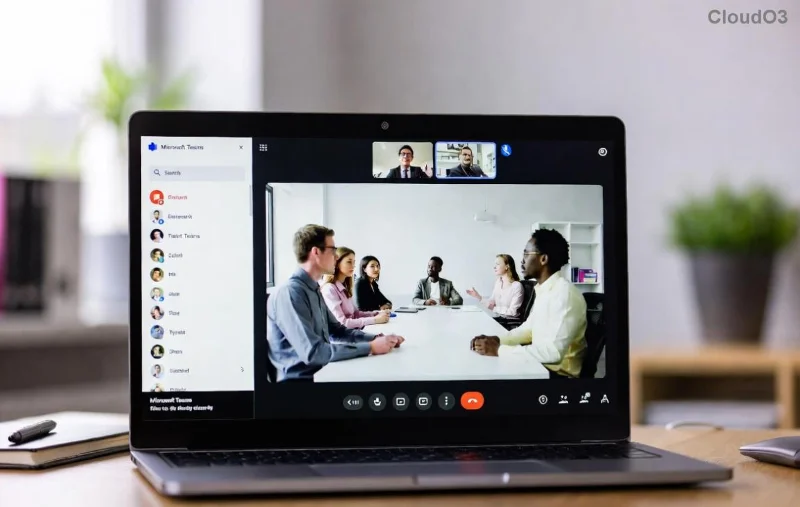
Ever sat through an epic Microsoft Teams meeting only to realize you need that recording later? 😎 Don't sweat it! Whether you're on Windows, Mac, or any laptop/PC, downloading Microsoft Teams recordings is a breeze. This guide cuts straight to the chase with proven, up-to-date methods. You'll have your videos saved in minutes, ready for offline viewing, editing, or sharing. Let's dive in and get you sorted! 👆
Quick Prerequisites Before You Start
- Active Microsoft Teams account with access to the meeting (organizer, presenter, or shared link).
- Teams desktop app installed (download here if needed).
- Permissions to view/download from OneDrive, SharePoint, or Stream.
- Enough storage on your laptop/PC.
Pro tip: ⭐ Recordings from personal meetings land in OneDrive; channel meetings go to SharePoint/Stream. Now, onto the methods!
Method 1: Download via Microsoft Teams Desktop App (Fastest for Most Users)
The Teams app makes grabbing recordings seamless. Perfect for daily users on laptops or PCs.
- Open the Microsoft Teams app on your laptop/PC.
- Navigate to Chat or Channels tab where the meeting occurred.
- Locate the meeting event—spot the video thumbnail or "Recording" label.
- Click the recording to play it, then hit the More options (three dots) ⋮.
- Select Download or Open in Microsoft Stream for direct save.
- Choose your download folder and hit Save. Done! 🎉

Your file saves as MP4—ready for VLC, editing in Premiere, or whatever. Works on Windows 10/11 or macOS.
Method 2: Using Microsoft Stream Portal (For Advanced Access & Bulk Downloads)
Stream is the powerhouse for all Microsoft Teams recordings. Ideal if the app method glitches.
- Go to Microsoft Stream in your browser (Edge/Chrome recommended).
- Sign in with your Teams-linked Microsoft account.
- Click My content > Videos.
- Filter by Teams meetings or search the recording title.
- Hover over the video, click More options ⋮ > Download video.
- MP4 downloads instantly to your PC/laptop Downloads folder.
![Microsoft Stream dashboard showing Teams recording download]()
Bonus: Edit transcripts or clips right in Stream before downloading. Newest updates make this lightning-fast! 🚀
Method 3: Direct from OneDrive or SharePoint (Owner/Channel Admins)
For full control, hit the source. Personal? OneDrive. Channels? SharePoint.
OneDrive (Personal Meetings)
- Open OneDrive in browser or app.
- Go to Recordings folder (auto-created post-meeting).
- Right-click the MP4 > Download.
SharePoint (Channel Meetings)
- From Teams channel, click Files tab.
- Find Recordings folder > Select file > Download.
![OneDrive folder with Teams recording ready for download]()
Admins: Share links for team access without full downloads.
Troubleshooting Common Download Microsoft Teams Recordings Issues
Hit a snag? Here's your fix-it table:
| Issue ❌ | Solution ✅ |
|---|
| No download button | Check permissions—ask organizer. Or use Stream method. |
| "Access denied" | Recording expired (90 days default). Request re-share. |
| Slow download | Clear browser cache or switch to desktop app. Use wired connection. |
| Mac-specific freeze | Update Teams app via Mac App Store. |
| File won't play | Re-download—ensure MP4 compatibility with VLC player. |
Still stuck? Microsoft's official guide: Teams Recordings Help.
Pro Tips to Supercharge Your Teams Recording Downloads
- Auto-save: Enable cloud recordings in Teams settings for instant access.
- Batch download: Use Stream's multi-select for 10+ files at once.
- Quality boost: Download highest res for presentations. 📈
- Secure shares: Password-protect downloaded videos.
- Integrate with tools like Zoom or Google Meet? Export to those too!
These hacks keep you efficient and ahead. 👏
Why Download Microsoft Teams Recordings? The Real Wins
Beyond convenience, saved recordings mean no more "Did I miss that slide?" moments. Review key points, train teams, or archive wins. With remote work booming, mastering this skill is a game-changer for your productivity.
Ready to grab your first recording? Pick Method 1 and test it now. Questions? Drop 'em in the comments—we've got more guides on Teams hacks coming up. Stay tuned and keep crushing those meetings! 🌟