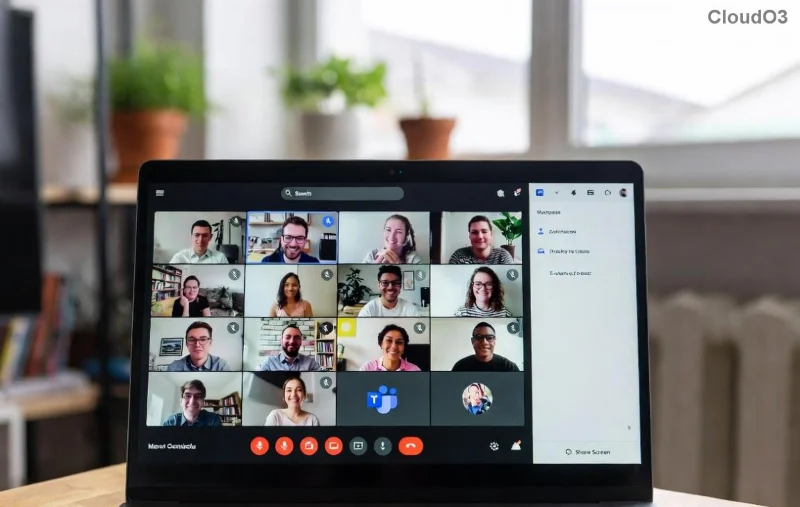
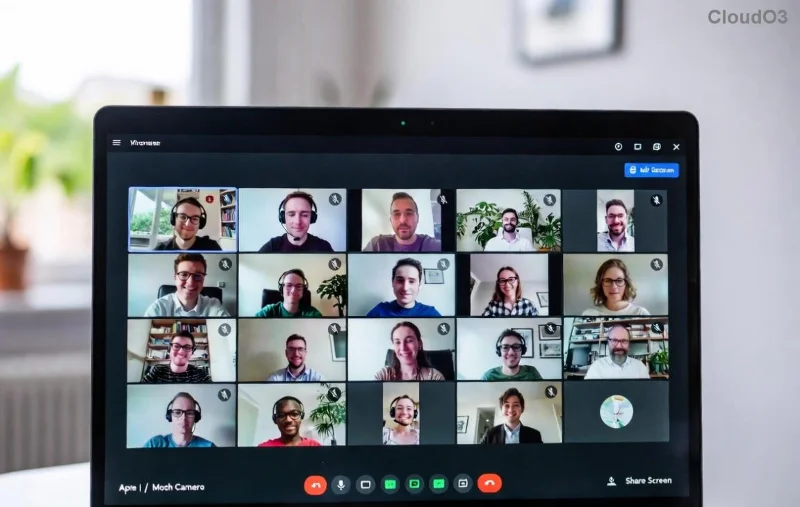
Ever needed to jump into a Microsoft Teams meeting or channel without the hassle of creating an account? 😊 Logging in as a guest in Microsoft Teams (2026) is your ticket to seamless collaboration. Whether it's a quick team huddle or ongoing project access, guest mode lets you contribute effortlessly. No long sign-ups, just pure productivity!
In this guide, we'll walk you through every step with crystal-clear instructions, stunning visuals, and insider tips. By the end, you'll be chatting, sharing screens, and high-fiving virtually in no time. Let's dive in! 🚀
What is Guest Login in Microsoft Teams?
Guest access in Microsoft Teams (2026) allows external users to join meetings, chats, or teams without a full organization account. There are two main flavors:
- Meeting Guest: Join calls anonymously via link (host must enable).
- Team Guest User: Invited collaborator with limited permissions.
Perfect for freelancers, partners, or one-off collaborators. Microsoft's official docs confirm it's more secure and streamlined in the latest updates.
Prerequisites for Smooth Guest Login ✅
Before you start:
| Requirement |
Details |
| Meeting Invite/Link |
From host; ensure "Allow guest join" is on. |
| Team Invite |
Email from team owner (for full guest user). |
| Browser/App |
Latest Edge/Chrome or Teams desktop/mobile app. |
| Internet |
Stable connection; mic/camera optional. |
Got these? You're golden! No Microsoft account needed for basic meeting guests. ⭐
Step-by-Step: How to Log in as a Guest for Meetings
The fastest way to log in as a guest in Microsoft Teams (2026) is via meeting links. Here's how:
- 📧 Receive the Invite: Check your email for the Teams meeting link. Click it!
- 🎯 Join Page Loads: You'll see the "Join Microsoft Teams Meeting" screen.
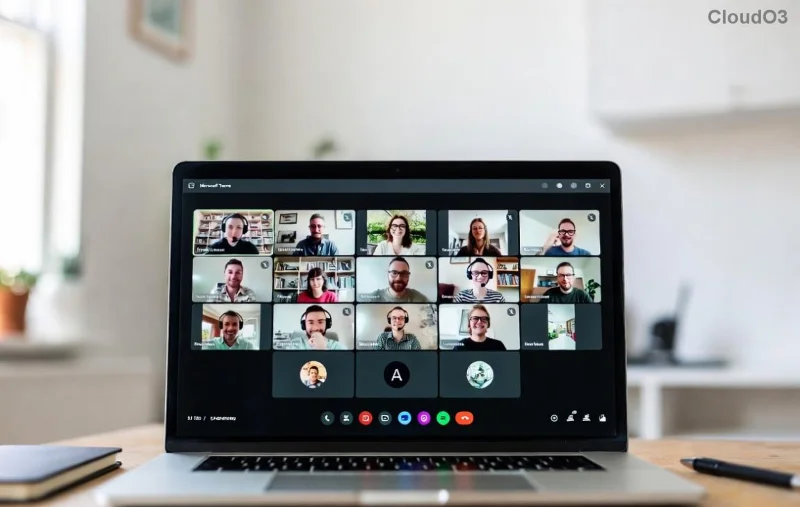
- 👤 Skip Sign-In: Don't click "Sign in." Instead, enter your name and select "Join as guest."
- 🔒 Waiting Room: Host approves – chat or react while waiting!
- 🎉 You're In!: Mute/unmute, share screen, and collaborate.
Pro Tip: Download the Teams app for better experience – it auto-detects guest mode. Works on Windows, Mac, iOS, Android.
Log in as a Guest User in Teams Channels (Invited Access)
For deeper access like channels and files:
- 📨 Accept Invite Email: Click "Join team" from the owner's invite.
- 🔐 Sign In Prompt: Use any Microsoft account (personal @outlook.com works) or create one free.
![Teams guest user sign-in process]()
- ✅ Verify as Guest: Teams labels you "Guest" – limited to invited teams only.
- 🚀 Explore: Post messages, join calls, access shared files securely.
Team owners control permissions via admin center. Feeling empowered yet? Keep reading for mobile magic! 📱
Mobile Mastery: Guest Login on iOS/Android
Teams app shines on phones:
- Open invite link in browser or app.
- Tap "Join as guest" – no account drama!
![Mobile Teams guest join interface]()
- Grant camera/mic perms.
- High-five from your pocket! 👏
Syncs perfectly with desktop for hybrid work.
Troubleshooting Guest Login Issues 🚫❌
Stuck? Common fixes:
- No Guest Option?: Host disabled it – ask them to toggle in meeting settings.
- Sign-In Loop?: Clear browser cache or try incognito mode.
- Audio/Video Fail?: Check site permissions (camera/microphone).
- Invite Expired?: Request a fresh one.
- Org Blocks Guests?: Admins must enable in Teams Admin Center.
99% of issues vanish with a refresh. Still stuck? Hit F1 in Teams for live help. You've got this! 💪
Why Choose Guest Mode in Teams (2026)? The Benefits
Beyond ease:
- Zero Cost: Free access, no subscription.
- Secure: End-to-end encryption, no data sharing.
- Flexible: Switch to full user anytime.
- Global: Works worldwide, 100+ languages.
Teams 2026 amps up AI features like real-time translation for guests – mind blown? 🤯
Level Up Your Guest Experience – Pro Tips
- Use a professional name for credibility.
- Enable notifications for invites.
- Share your screen sparingly – guests have view-only in some teams.
- Feedback to host: "Loved the guest access!"
Ready to collaborate like a pro? Test it now with a friend’s meeting link. Your feedback fuels more guides like this! 🌟
Mastered how to log in as a guest in Microsoft Teams (2026)? Share this guide and spread the collaboration love. Questions? Drop a comment below!