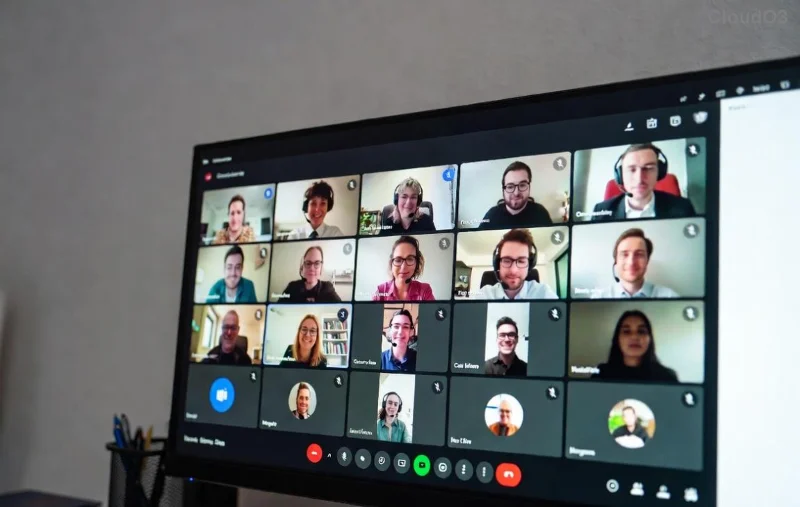
Ever joined a Microsoft Teams meeting, excited for interactive breakout rooms, only to stare at a blank interface? 😩 You're not alone. Breakout rooms in Teams are game-changers for workshops, classes, and team brainstorms, but they vanish like ghosts for many users. Don't worry – this guide dives straight into why you can't see breakout rooms in your Teams meeting and hands you simple, step-by-step fixes. Stick around, and you'll be splitting sessions effortlessly! ⭐
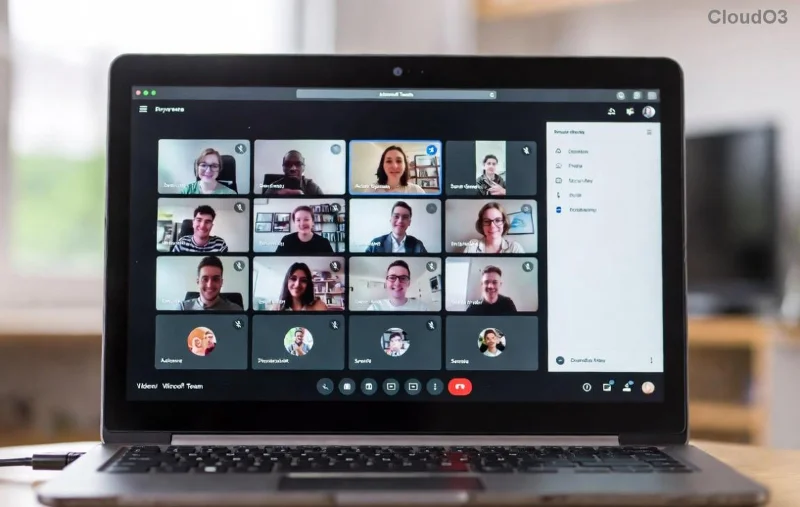
1. You're Not the Meeting Organizer or Co-Organizer ❌
The #1 culprit: Breakout rooms in Teams are only visible to the meeting organizer or designated co-organizers. Participants? They won't see the tab until rooms are created and assigned.
- ✅ Organizer/Co-organizer: Full access to create, manage, and view.
- ❌ Participant/Guest: Hidden until invited.
Quick Fix: Ask the host to promote you: More actions (⋯) > Make co-organizer. Boom – rooms appear! 👆
2. Breakout Rooms Aren't Enabled in Meeting Options
By default, Teams breakout rooms must be toggled on. If skipped, poof – invisible.
Fix It Now:
- Click Breakout rooms in the meeting toolbar (if visible).
- Or pre-enable: Calendar > Meeting > Breakout rooms > On.
![Enabling breakout rooms in Teams meeting settings]()
3. Outdated Teams App or Browser Glitch
Microsoft rolls out breakout room updates frequently. Old versions? No dice.
Pro Tip: Update to the latest Teams client. Desktop app trumps web for stability.
- Windows/Mac: Profile > Check for updates.
- Web: Switch to Edge/Chrome latest.
Permissions Breakdown: Who Sees What?
Confused by roles? Here's a clear Teams breakout rooms permission table:
| Role |
Can Create Rooms |
Can See Tab |
Notes |
| Organizer |
✅ Yes |
✅ Always |
Full control |
| Co-Organizer |
✅ Yes |
✅ Yes |
Promoted by host |
| Presenter |
❌ No |
❌ Until assigned |
Limited view |
| Attendee/Guest |
❌ No |
❌ Hidden |
External users restricted |
Source: Official Microsoft Teams Breakout Rooms Guide. Bookmark it! 📌
4. License or Policy Restrictions Blocking Access
Enterprise admins love policies. If your org disables breakout rooms in Teams meetings, they're locked.
Check & Fix:
- Teams Settings > About Teams > Verify license (E3/E5 typically include).
- Contact IT: "Enable breakout rooms policy."
Guests/external? Often blocked – switch to internal account. 🔑
5. Device or Network Hiccups
Mobile? Web? VPN? These sabotage visibility.
- ✅ Desktop app = Best experience.
- ❌ Mobile: Limited features.
- 🔄 Restart Teams/router.
![Teams breakout rooms creation interface]()
6. Meeting Already in Progress Without Rooms
Can't add post-start? Myth busted – you can!
Steps: Participants > Breakout rooms > Create rooms. Assign & open. Magic! ✨
7. Advanced Troubleshooting for Stubborn Cases
Still missing? Nuke cache:
- Teams > Settings > Clear cache (desktop).
- Sign out/in.
- Rejoin meeting.
Pro move: Test in a new meeting. If it works, issue isolated! 👍
Bonus: Pro Tips to Master Breakout Rooms in Teams Forever
Once unlocked:
- 1️⃣ Auto-assign or manual for 50+ participants.
- 2️⃣ Set timers – keep energy high!
- 3️⃣ Countdown notifications thrill groups. 🎉
Ready to level up your meetings? Practice in a test call today. Your team will thank you! 🙌
Wrap-Up: See Breakout Rooms in Teams Today!
From roles to updates, you've got the full arsenal against "why can't I see breakout rooms in my Teams meeting." Start with organizer status and settings – 90% fixed instantly. Share your win in comments below! Got more Teams woes? Our guides have you covered. Stay productive! 🚀